What is Smarters Pro and why are users searching for it?
Smarters Pro is an easy-to-use media player app that helps you organize and play the stream links you already have. It is not a subscription service or a channel provider.
The app supports M3U and JSON playlists, plays from local files and remote sources, and works across many devices in the United States. You’ll use it for live TV, movies, and series by adding playlist links or provider login details.
In this guide, you will get clear setup steps, tips to improve playback, and quick troubleshooting for common issues. Many playback problems come from the provider, not the player, so knowing how it works will save time.
Top features you’ll notice first include an EPG guide, favorites, sorting, subtitles, multi-screen, and casting support. Follow legal and safe sourcing and use reputable providers only.
Table of Contents
Key Takeaways
- You’re installing a media player app, not buying channels.
- Use playlist links or provider credentials for live TV and VOD.
- Setup tips cover devices like iPhone, Apple TV, Android, Windows, and Mac.
- Many errors stem from the service, so check provider status first.
- Look for EPG, favorites, subtitles, multi-screen, and cast features first.
- Follow legal sourcing and choose reputable providers for safe streaming.
- References to iptv smarters relate to supported playlist formats and compatibility.
What Smarters Pro Is (and What It Isn’t)
Think of the app as a playback interface that reads your playlist links and shows what those sources deliver. It works like a container: you add credentials or a playlist, and the player renders the channels, VOD, and guide data your source provides.
This IPTV player as a standalone media player
“does not provide, host, sell, or promote any media content, TV channels, or streaming services.”
This listing language means the app itself contains no built-in content. You don’t get channels or a subscription just by installing it.
It doesn’t provide, host, sell, or promote channels or streaming services
Instead, a third-party provider supplies the channel list, VOD library, and EPG data. The player simply reads those links and plays the streams they point to.
Why this distinction matters when you’re choosing an IPTV service provider
If a site advertises a “This IPTV player service with thousands of channels,” treat that claim cautiously. They’re selling a service that uses the player’s name, not the player itself.
Many complaints—buffering, missing channels, or absent guide data—trace back to the provider’s stream quality and uptime, not the media player. So when you evaluate a vendor, focus on their streams, support, and refund policies.
- Practical takeaway: You are buying the provider’s streams, not the app.
- Only add legally acquired sources and avoid vendors who can’t clearly explain their offering.
How IPTV Players Stream Live TV, Movies, and Series
You add a playlist URL or an account login once, and the app parses that source into channels, categories, and on-demand titles you can tap to play.
How playlists and logins map to content
Your provider usually gives an M3U URL or a JSON file and sometimes an EPG link or portal credentials. Those items tell the player what to list and where each stream lives.
Live streaming vs video-on-demand playback
Live streams behave like a continuous broadcast. You join in at the current point and may have limited pause or rewind. Live playback feels less forgiving when the source is overloaded.
VOD titles act like files you control. Pause, resume, and resume points are typical, and playback depends more on file format than on constant ingestion.
Local media vs remote sources
Local media plays from device storage when supported. Remote sources use your network and your provider’s servers. Poor network or an overloaded source can cause buffering.
“Add a link or sign in once; the player will build the guide so you can find channels and shows quickly.”
| Type | Behavior | Dependence |
|---|---|---|
| Live | Continuous stream, limited seek | Provider uptime, stream format |
| VOD (video) | On-demand files, full controls | File format, device codec |
| Local | Plays from device storage | Device storage and app support |
Multiple playlist sources can coexist, which is useful for backups or separate household profiles. Expect parsing to take longer with very large lists—this is normal and may affect first load time.
Key Features You’ll Use Most in the App
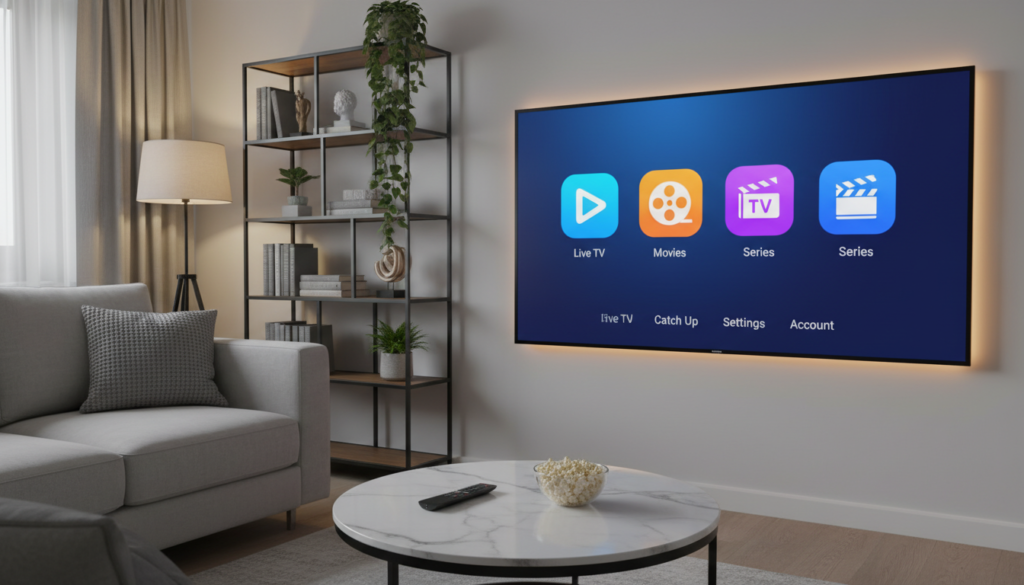
A streamlined home view makes it fast to move from Live TV to Movies or Series without getting lost in categories. That orientation matters when playlists are large or metadata is inconsistent.
User-friendly interface and navigation basics
Use the top tabs to jump between Live, Movies, and Series. If a folder feels confusing, check the sort options or the search field to avoid digging through nested lists.
Multi-screen support for watching across multiple streams
You can run more than one live stream at a time, useful for sports or news. Keep in mind multi-screen demands more CPU and Wi‑Fi stability and can increase buffering.
TV Catchup/Archive, subtitles, sorting, and history
The app shows catchup or archive items only if your provider includes them. Subtitles and multiple tracks improve VOD playback when supplied.
Sorting helps with big libraries, and clearing watching history is useful when several people share a device. Expect occasional slow navigation; that often stems from playlist metadata, not a broken feature.
Full-screen playback and codec performance
Full screen playback feels smoother with modern codecs, but older devices may struggle. If video stutters, try switching stream formats or testing on another device to isolate the issue.
“If navigation feels slow or labels don’t match what you expect, check your playlist metadata and provider status before assuming the app is at fault.”
Supported Formats and Playlists (M3U, JSON, and More)
Your playlist format shapes how the application updates channels and shows metadata. Choosing URL-based or file-based methods affects refresh behavior, backups, and troubleshooting.
M3U URL vs file-based M3U
Pasting an M3U playlist URL is the easiest path for live updates. When your provider changes channels, a URL-based playlist usually refreshes without re-importing.
Importing an M3U file is useful for offline testing or when you export lists from a tool. Use the file option to validate a feed before pointing a live player at it.
JSON playlists and common use cases
Some providers and catalog tools export JSON-style catalogs. JSON is more structured and can carry extra metadata for categories and thumbnails.
JSON is helpful when a tool or service manages complex libraries, but URL-based M3U still wins for simple, frequent updates.
Managing multiple sources
Keep a backup iptv service or a family playlist separate from your personal list. Multiple playlist sources let you mix providers and fall back if one stream drops.
- Metadata reality check: Icons, names, and categories come from the provider; the player only displays what it receives.
- Version note: App behavior can change by version, so check your installed version if features are missing.
- Troubleshooting tip: If parsing fails, try switching from file import to URL or vice versa to isolate malformed sources.
“M3U Login Implemented”
Compatible Devices and Platforms in the US
Compatibility varies widely; confirm OS levels and chipsets to reduce playback and parsing issues.
Use this US-focused checklist to confirm your device meets the minimum requirements before troubleshooting performance.
- iPhone & iPad: Requires iOS 15.6+ or iPadOS 15.6+. Older models may run but can feel slow with large playlists.
- Apple TV: Needs tvOS 15.6+. Remote navigation is primary, so rely on EPG and favorites for fast channel switching.
- Apple Vision Pro: visionOS 1.0+ support is listed; availability depends on store rollout and your provider’s stream format.
- Mac: macOS 12.5+ and an Apple silicon Mac (M1 or later) are required for the App Store build; Intel Macs may not be supported.
- Android & Chromebook: Available across Android phone, tablet, and Chromebook. Performance varies by hardware; buffering often reflects the stream source.
- Windows & macOS desktop: Desktop availability exists but performance depends on OS version and hardware codecs.
- Fire TV / Fire Stick: Availability varies by store region. Verify you install the legitimate application listing; some users use alternative install paths which can affect updates and security.
“Confirming OS and hardware first saves time when diagnosing playback issues.”
| Device | Minimum OS / Chip | Notes |
|---|---|---|
| iPhone / iPad | iOS / iPadOS 15.6+ | Older devices may work but can be slow with large lists |
| Apple TV | tvOS 15.6+ | Remote-driven UI; use EPG & favorites for quick access |
| Apple Vision Pro | visionOS 1.0+ | Support depends on app store rollout and stream format |
| Mac (App Store) | macOS 12.5+; Apple M1 or later | Apple silicon required; Intel Macs may lack support |
| Android / Chromebook / Windows | Varies by device | Performance depends on hardware; check codecs and RAM |
Before You Start: What You Need to Set Up a Smooth Experience
Get a short checklist together before you open the app. That small step cuts setup time and helps you spot provider issues early.

Your provider details or playlist source
Ask your provider for the exact items you need: the playlist URL or file, any username and password, portal details, and a separate EPG/guide link if they offer one.
Save those values where you can copy-paste them during setup to avoid typos.
Sanity-check the provider before blaming the app
Confirm the playlist works on another device or in a simple player. Also verify your subscription status with the seller.
Many reviews that blame performance actually point to the provider’s streams, not the player app.
Internet speed expectations and router placement basics
Live TV needs a steady connection more than a high burst speed. Prefer wired Ethernet for critical sources and place your router to reduce interference.
Congestion and poor placement cause jitter and packet loss, which hurt live streams more than menus or VOD browsing.
Find the correct app listing in your app store
Use the official app store listing and check the publisher name and ratings. Avoid lookalikes that copy the player name.
Test plan tip: Before customizing settings, make a simple test: play one live channel and one VOD title to confirm a reliable baseline experience.
“Separate installing the player from choosing a paid service; scams often mix the two.”
How to Install the IPTV Player from the App Store or Google Play
Get the right application first. Open the App Store or Google Play, search for the player, and tap Download or Install. Allow any requested permissions so the player can read storage and network access for playlists.
Download and first launch steps
Open the app after installation. You should see an initial setup or a screen that prompts you to add a playlist or provider login.
If the app crashes, shows an endless loading screen, or never shows the add-playlist option, cancel and reinstall from the store.
Confirming the correct app and version
Check the publisher name—iOS shows Tech Smarters Private Limited—and review the visible version history to confirm recent updates like EPG view. Find your installed version in device settings or the app’s About menu.
- Tip: Update the app before importing large playlists; many updates fix parsing and stability.
- Quick check: Verify the app reaches the add-playlist screen and is not stuck before you spend time configuring provider details.
“Install from the official store and confirm publisher and version to avoid lookalikes.”
How to Add Your Provider or Playlist in the IPTV Player
Start by opening the add-source screen and choose whether you’ll paste a web link or upload a file from your device. Having your provider credentials or a saved playlist ready speeds setup.
Adding an M3U URL login
Tap Add Source and select URL. Paste the M3U link in the field labeled URL or Login.
Fill the name or profile field so you can tell sources apart later. A clear name helps when you have multiple providers or backups.
Uploading a playlist file from your device
Use the file import option to upload a small exported playlist for testing. This is useful before importing a very large list.
Choose the file, confirm the name, and let the app parse entries. If the file is valid, channels and VOD will appear in minutes.
Loading data from device storage (where supported)
Some platforms allow you to load your data from device storage using the “Load Your Data From Device” option. Availability depends on OS permissions.
If the option is not visible, check app permissions or try a different platform where local file access is allowed.
What to do if your playlist gets stuck parsing or won’t finish loading
If parsing loops or stalls, follow this checklist:
- Confirm the URL is correct and reachable.
- Try a smaller playlist to rule out size limits.
- Switch networks (Wi‑Fi to cellular) and restart the app.
- Test the same file in another player to isolate provider vs app issues.
Parsing loops often come from oversized lists, malformed entries, temporary provider timeouts, or app-version bugs. Capture the exact error message, whether the issue happens on Wi‑Fi and cellular, and the percent/time where it stalls. This information speeds support responses.
“Channel no longer available” errors usually point to the provider, while parsing loops often indicate formatting, connectivity, or app stability problems.
How to Set Up Live Channels and the EPG (TV Guide)
Live viewing improves a lot when the EPG is available. The electronic program guide changes a simple channel list into a schedule with program names, start times, and upcoming blocks.
Enabling EPG view and what it changes
Open the Live or Guide settings and switch on the EPG view. When it works, each channel shows the current program, the next show, and the program time blocks.
If the guide is missing, you’ll see blank entries or a row of folders instead of program names. That usually means the provider did not supply guide data or the EPG URL is not mapped correctly.
Using the EPG seek bar on Live TV
While watching live, use the EPG seek bar to jump to earlier or later points in the schedule. If your provider offers catchup or archive, the seek bar can show recorded blocks you can scrub.
Note: seeking may be limited on pure live streams without archive support.
Common guide issues and how to check if it’s your provider vs the app
- If channels play but the guide is empty, treat it as an EPG mapping or provider feed issue.
- If nothing plays and you get a “channel not available” message, focus on stream access and subscription status.
- Stale schedules, endless loading, or partial lineups may come from a cached app state or a bad provider feed.
“Ask your provider whether they supply a dedicated EPG link and if timezone settings are required for correct program time data.”
| Symptom | Likely cause | Quick check |
|---|---|---|
| Empty guide but channels play | Missing EPG URL or wrong mapping | Ask provider for EPG link; re-import guide |
| Channels play but schedule is stale | Provider feed outdated or cached app data | Clear app cache; request updated EPG from provider |
| Endless guide loading | Large feed or parsing error | Test smaller list; switch network and retry |
| Nothing plays, error message | Stream access or subscription issue | Verify credentials and provider status |
Tip: Document examples for support: note the channel name, the current time, and what the guide shows. That message speeds provider troubleshooting and helps you get an accurate fix fast.
How to Optimize Playback Quality and Reduce Buffering
You can improve video smoothness by switching stream formats and checking where the bottleneck actually lives.
Switch stream formats when playback stutters
Stream format toggling is a simple tool. If HLS stalls, try MPEG‑TS or an alternate format your device supports.
Different codecs and container types behave better on older phones, tablets, or modest routers. Use the new toggle to test which format gives steady play.
When buffering points to the service — not the video player
If several channels buffer across devices, the problem often sits with the streaming service, not the video player.
- Quick home test: play one channel off‑peak, then during a peak event (like live sports).
- If both devices show the same stutter at peak, the provider is likely congested.
- “Channel no longer available” usually means the provider’s endpoint changed or went offline.
Audio routing and volume checks
Low sound on phones is often a device issue. Confirm your output (Bluetooth vs. speaker), enable volume normalization, and test sound in another app.
If alternate apps also sound quiet, check phone settings or the connected accessory before changing streams.
Improve responsiveness when navigation feels slow
Try these quick fixes: reduce playlist size by using a smaller bouquet, clear the app cache or history, and close background apps on older devices.
These steps free memory and make menus and searches snappier without changing your provider.
Don’t waste money on app “upgrades” expecting to fix an overloaded service; choose providers that offer trials and clear support instead.
| Symptom | Likely cause | Quick fix |
|---|---|---|
| Frequent buffering | Provider congestion or low bandwidth | Test off‑peak, switch format, try wired Ethernet |
| Channel not available | Endpoint removed or restricted by service | Contact provider; test same channel in another player |
| Low audio volume | Output routing or device limit | Select proper output, enable normalization, test other apps |
| Slow navigation | Large playlist or low device memory | Use smaller bouquet, clear cache, close background apps |
How to Customize Your Viewing Experience
Make the interface work for you by curating favorites, sorting libraries, and setting time displays. Small tweaks save you time and make the app feel faster.
Favorites and faster channel access
Add channels to Favorites to cut scrolling. When your provider supplies hundreds of entries, favorites let you jump straight to what you watch most.
Sorting movies, series, and TV categories
Use sorting options to order content by date, title, or relevance. Good sorting hides messy metadata and helps you find movies and episodes quickly.
Time format and subtitle track selection
Change the time display between 12‑hour and 24‑hour so the EPG matches your preference. This avoids start-time confusion across devices.
Subtitle tracks are supported when providers include them. If subtitles don’t appear, check another stream or confirm the provider supplied subtitle files.
Auto-play episodes, progress tracking, and clearing history
Enable Auto Play Episodes to keep series playing in sequence. Progress tracking saves your spot across sessions.
Clear watching history on shared TVs or guest devices to protect privacy and reset recommendations.
| Customization | Benefit | Quick action |
|---|---|---|
| Favorites | Faster access to channels you use | Add channels, remove unused entries |
| Sorting (Movies/Series/TV) | Cleaner browsing despite poor metadata | Sort by date, title, or popularity |
| Time format & Subtitles | Clear schedule and correct captions | Toggle 12/24 hour; select subtitle track |
| Auto-play & History | Smoother bingeing and privacy control | Enable auto-play; clear history when needed |
“Organizing favorites and categories not only helps you find shows faster, it also reduces navigation load and can improve responsiveness.”
How to Use Casting and Multi-Screen Features
Casting lets you start playback on your phone or tablet and send that stream to a compatible TV or receiver using Google Cast. The phone remains your remote while the TV shows the video.
Setup checklist:
- Confirm your mobile device and cast-enabled receiver are on the same Wi‑Fi network.
- Make sure the stream plays correctly on your device before you cast.
- Open the cast menu and select the target device; wait for the handshake to complete.
Google Cast integration basics
Google Cast integration means the app uses the Cast protocol to hand video to a receiver. Some providers restrict casting, and certain container formats won’t transfer cleanly even if they play locally.
Multi-screen setup for live sports and news
Running multiple streams gives you simultaneous views for sports or news. Each extra stream raises bandwidth and CPU load, so start with two streams and add more only if things stay stable.
Real use cases: follow two games at once, keep a live weather feed while watching a main event, or monitor breaking coverage across channels.
Troubleshooting basics: if casting fails, test another cast-enabled app to verify your network. Try switching stream formats or adapters if the receiver rejects the feed.
“Device compatibility and provider stream stability are the two biggest success factors for casting and multi-screen in daily use.”
| Action | Why it matters | Quick tip |
|---|---|---|
| Same Wi‑Fi network | Cast discovery and handshake require the same LAN | Use a single SSID and disable guest networks |
| Confirm local play | Ensures the source and credentials work before casting | Play one channel on-device first |
| Limit initial streams | Prevents overload of bandwidth and device CPU | Start with two concurrent streams |
| Test alternate apps | Helps isolate network vs. app issues | Cast from a known working app like YouTube |
Known Limitations You Should Expect (Based on User Reports)
You should expect a few user-facing limits that affect browsing and discovery more than playback itself. Many reports come from iPad users and reflect how playlist metadata and UI choices shape what you see.
iPad orientation and landscape behavior
On iPad, menus may force portrait while playback switches to landscape only in full-screen. That means you might rotate the device to watch video but use portrait to navigate lists and settings.
Channel name visibility vs icons
Whether you see written labels or icons depends on the playlist your provider supplies. If the feed has oversized icons or missing name fields, the grid shows images with little text, which makes scanning harder.
Some users prefer the older smarters player lite layout because its written labels and simpler grid made channel-surfing faster.
Search behavior and the guide
Search can prioritize categories and folders over raw channel names. That means typing a channel title may return category results instead of the exact channel you expect.
“If browsing feels slow, this is usually a metadata or UI choice, not a stream failure.”
- Workarounds: Ask your provider for improved playlist metadata or a different playlist format.
- Use favorites or reduce category depth to find channels faster.
- Keep the app updated; UI and guide improvements appear in release notes often.
Troubleshooting the IPTV Player When Channels Won’t Load or Errors Appear
If a channel won’t load, quick tests help you find whether the issue is local or with the streaming service. Start small: test one channel, try a different network, and note the exact error message you see.
“Channel no longer available” and common causes
That alert usually means the stream URL is dead, moved, geo‑restricted, or temporarily offline at the service or provider side. It rarely means the player is the root cause.
Fixes for spinning/reloading loops and stuck parsing
Force close the app and reboot the device. Switch Wi‑Fi to cellular or a different LAN, then try a different channel category.
- Validate the playlist in another player to rule out format issues.
- Import via URL instead of file (or vice versa) if parsing stalls.
- Reduce playlist size temporarily to speed parsing.
When favorites misbehave and before you reinstall
If favorites play the wrong video, remove and re-add the item after a playlist refresh. Clear cache or history, remove and re-add the playlist, and confirm the app is up to date before reinstalling.
Documenting issues for faster support
When you contact support, include the channel name, exact time, a screenshot of the error, and whether the problem occurs on multiple networks or devices. That detail speeds resolution and prevents you from wasting money on a service that won’t help.
Updates, Privacy, and Safety Notes You Should Know
Update cadence matters: frequent minor releases often adjust UI elements and playback options. These updates usually show as minor bug fixes plus occasional feature drops like EPG view, stream format toggling, and casting.
What update patterns mean for you
Expect short, regular version updates that improve stability and add small features. Keep the application current when you rely on EPG, multi-screen, or new playback toggles.
Privacy and data notes
Store listings state no data is collected (iOS) and no data collected or shared (Android). Verify this directly on the app listing in your store and the developer website before you trust a download.
Terms, legal use, and safety steps
You are responsible for the media and content you load. The app includes disclaimers and links to terms on the official website; read them so you understand limits and liabilities.
- Quick safety checks: confirm the store listing publisher, check the website link, and avoid downloads from random sites.
- After an update: test one live channel, one VOD title, subtitles, and EPG to spot any regressions fast.
| Topic | Action | Why it matters |
|---|---|---|
| Version updates | Install promptly | Fixes bugs and adds playback features |
| Privacy statements | Check store listing | Confirms whether data is collected or shared |
| Terms & website | Review terms link | Explains responsibility for media and content |
“Always cross-check the official website and store listing when you see a download link on an unfamiliar site.”
IPTV Player Apps vs IPTV Services: Avoiding Confusion and Scams
Distinguishing the media player app from sites selling subscriptions will save you time and help you avoid scams. Treat the app as a download; treat paid offers as a separate service you must vet before you pay.
How to tell a media player from a subscription service
A legitimate player appears in the App Store or Google Play with a named developer, recent updates, and clear listing details. If a seller claims to include “built-in channels” with the player, they are actually selling a separate service.
What to look for on any IPTV service website before you pay
Check for visible business pages: Terms, Privacy Policy, and Refund Policy. A real website lists an FAQ and clear pricing that matches what you will receive.
- A working contact method (email or ticket system), not only chat apps.
- Trial options and documented setup guides that match your devices.
- User reviews and independent comparisons that confirm uptime and EPG claims.
Why trials, clear policies, and real support channels matter
Trials let you confirm streams on your main TV and avoid wasting money on buffering during peak events. Clear policies protect you if the service fails to deliver. Real support—email or a ticket system with hours—makes troubleshooting possible and prevents you from wasting money on silent sellers.
| Red flag | What it means | Quick check |
|---|---|---|
| Landing page only | No legal pages or contact info | Find Terms and a business email on the website |
| WhatsApp-only support | Limited accountability | Ask for a ticket system or support email |
| No trial offered | High risk of low-quality streams | Request a short trial before paying |
| “Includes player channels” claim | They resell playlists, not the app | Install the app from the store and test provider links |
Conclusion
Conclusion
Finish strong, practical steps will keep your setup reliable. Remember: The app is the player; your chosen service supplies channels, VOD, and EPG data. Treat them separately when you troubleshoot.
Install from official stores, add your playlist or provider login, enable the EPG, and create favorites and sorting to speed access. Key features that improve daily use include EPG view, format toggling for compatibility, subtitles, autoplay episodes, and casting or multi‑screen when your Wi‑Fi is solid.
If playback fails, separate provider issues (buffering, channel unavailable) from app faults (parsing loops, UI quirks) and document errors before contacting support. Vet any seller: check policies, trials, and real support to avoid scams.
Keep the app updated, refresh playlists periodically, and retest after major OS or provider changes to maintain a smooth experience with this IPTV player and iptv smarters setups.