
IPTV Smarters Pro PC download and installation guide (2026) — this step-by-step tutorial shows you how to install and set up the Windows version for smooth streaming.
You’ll get practical information on login details, how live TV and on-demand files behave, and which settings most affect desktop playback.
You should expect to need a subscription from a content provider for channels to appear. This guide explains which credentials matter and what the player does — and does not — provide.
Later sections cover legality and safety in the United States in neutral terms, plus troubleshooting tips for install errors, playlist failures, and buffering. You’ll also find a short comparison of desktop versus Fire TV and Android options so you can pick the best platform for your entertainment and network.
Key Takeaways
- You’ll learn a full download-to-playback workflow for reliable streaming on Windows.
- The guide lists the exact login details the app requires for channels and on-demand use.
- Troubleshooting covers the most common PC playback failures and fixes.
- Legality and safety checks are explained neutrally for U.S. users.
- You’ll get a short comparison of desktop, Firestick, and Android for real-world use.
Table of Contents
What IPTV Smarters Pro Is and How It Works on Desktop
Think of the Windows version as a lightweight media hub that reads a stream source and renders video and audio on your device.
What it is: This app is an IPTV player for Windows that functions like a media player interface for streams. It does not supply channels or content. Instead, it reads a provider’s playlist or API and shows the channel list for you to browse.
How desktop playback works: The player fetches a playlist or API source, authenticates with credentials, and then decodes video and audio with the built-in player. That flow is why correct login details matter.
Credentials you need: most users receive a username, password, and a server or M3U URL. Those three items authenticate your access and load channels and EPG data when the provider offers it.
The Windows version and version compatibility matter. Match the app build to your Windows release to avoid crashes or missing codecs on your device.
Key PC features and player controls
- Live TV and VOD libraries with searchable listings.
- Mark favorites, sort channels by country, and use category navigation.
- Multi-screen viewing for side-by-side sports or news.
- Player controls: full screen, aspect ratio, audio source switching, and zoom to fix letterboxing or cropped video.
| Feature | What it does | Why it matters |
|---|---|---|
| Live & VOD | Play broadcasts and on-demand files | Keeps both live channels and saves available in one interface |
| Favorites & Country Sort | Organize channels by preference or region | Makes daily navigation faster for users |
| Player Controls | Fullscreen, aspect ratio, audio source, zoom | Improves viewing comfort on larger monitors |
What to expect next: The next sections will walk you through download, install, and how to add your subscription so channels appear and play reliably on Windows.
IPTV Smarters Pro App vs IPTV Subscription Service
There’s a simple split to know: the app is the player UI, while subscription services provide the channel lists, streams, and login details that give you access.
Why that matters: if you see “no channels” or broken streams, the cause is often the playlist or provider status—not the player itself. That distinction helps you decide whether to contact provider support or adjust app settings.
The two common login formats
M3U URL (playlist): a simple file or URL that lists streams. Use this when your provider sends a direct playlist link or file.
PLAYER API (Xtream Codes): a login method that uses server URL plus username and password. This often delivers channel lists and EPG in one step and is common on desktop setups.
What you’ll typically receive
- Server or M3U URL, username, and password sent by email.
- Sometimes an EPG URL and instructions for device setup.
- Keep credentials secure and save provider support contact for troubleshooting.
If you still need access details, see our guide on choosing an IPTV subscription that works with Smarters Pro and verify device compatibility and support channels before you buy. Remember to only load playlists you’re authorized to use and review provider terms of use.
iptv smarters pro pc System Requirements, Price, Safety, and Legality
Good playback depends more on network stability and a rested CPU than on having the latest graphics card.
Minimum PC considerations for smooth streaming
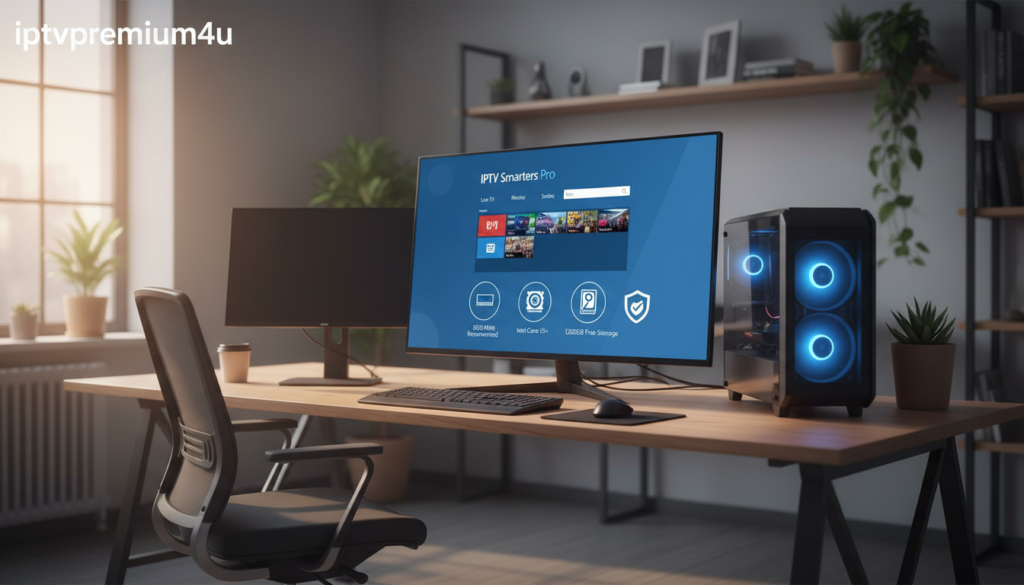
Minimum specs: dual‑core CPU (2.0 GHz+), 4 GB RAM, and Windows 10 or 11. For HD or multi‑screen viewing, aim for a quad‑core CPU and 8 GB RAM for better performance.
Network matters more than raw hardware. Use Ethernet when possible for steady speed and lower jitter.
If you plan 4K or several simultaneous streams, check your modem, router, and internet plan before upgrading the device.
Pricing and the “remove ads” option
The app often works in a free tier. A paid upgrade labeled “remove ads” typically only eliminates in‑app ads and adds minor UI features.
This does not change what your content services charge. You still need valid provider credentials (username, password, or playlist source).
Legality in the United States
The player software itself is generally legal in the United States. Whether your use is lawful depends on the channels and services you load.
Choose legitimate services, avoid unauthorized restreams, and keep receipts or account records if you’re unsure about rights to content.
Safety tips before downloading
- Download only from a known vendor domain and verify digital signatures when available.
- Scan installers for malware and avoid repackaged files from untrusted mirrors.
- Review requested permissions; be wary if an app asks for excessive privacy or data access.
- Keep Windows and drivers updated and confirm you can reach official support if something looks off.
| Check | Why it matters | Action |
|---|---|---|
| Download source | Prevents bundled malware | Verify domain and signatures |
| Network speed | Affects buffer and stutter | Use Ethernet or upgrade plan |
| Permissions | Protects privacy and data | Grant only needed access |
How to Download and Install IPTV Smarters Pro on Windows 10 and Windows 11
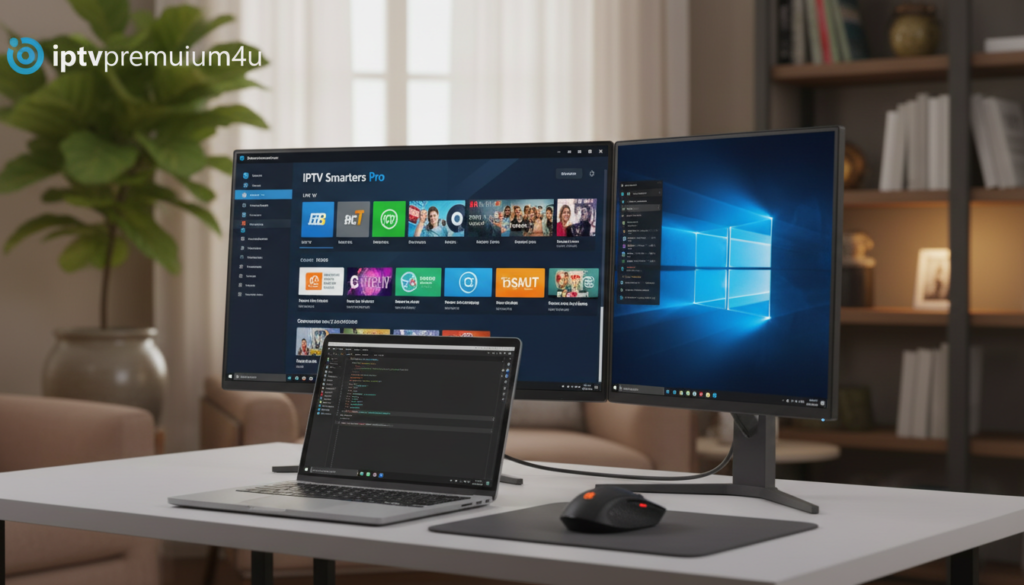
Start by grabbing the official Windows installer so you avoid unofficial mirrors and bundled extras. Download from the vendor domain and confirm the file name and digital signature match the publisher. Check whether the installer lists Windows 10 or 11 compatibility to pick the correct version for your device.
Clean install steps
- Download the verified installer to your Downloads folder.
- Double-click the file, accept the User Account Control prompt, and follow on-screen steps.
- Allow required permissions and finish setup, then launch the app.
First-launch checklist
Confirm the player opens, menus populate, and the app accepts a playlist or API entry. If you requested a trial, have the credentials from your email ready.
Common install errors and fixes
| Error | Cause | Fix |
|---|---|---|
| Blocked by SmartScreen | Unknown publisher warning | Confirm signature or use Windows Defender SmartScreen bypass after verification |
| Missing dependencies | Required runtimes or codecs absent | Install Visual C++ runtimes and common codec packs |
| Corrupted download | Interrupted transfer | Re-download from official source and compare file size |
If the app crashes or won’t play local video/audio, update graphics and audio drivers, try a different app version, and check Windows default audio output and exclusive mode. On Mac, use a macOS IPTV client or run a Windows environment as an alternative.
Setup and Add Your IPTV Subscription in Smarters Pro on PC
Before you browse channels, add your provider details so the player can load your lineup and schedules.
Xtream Codes API login (step-by-step)
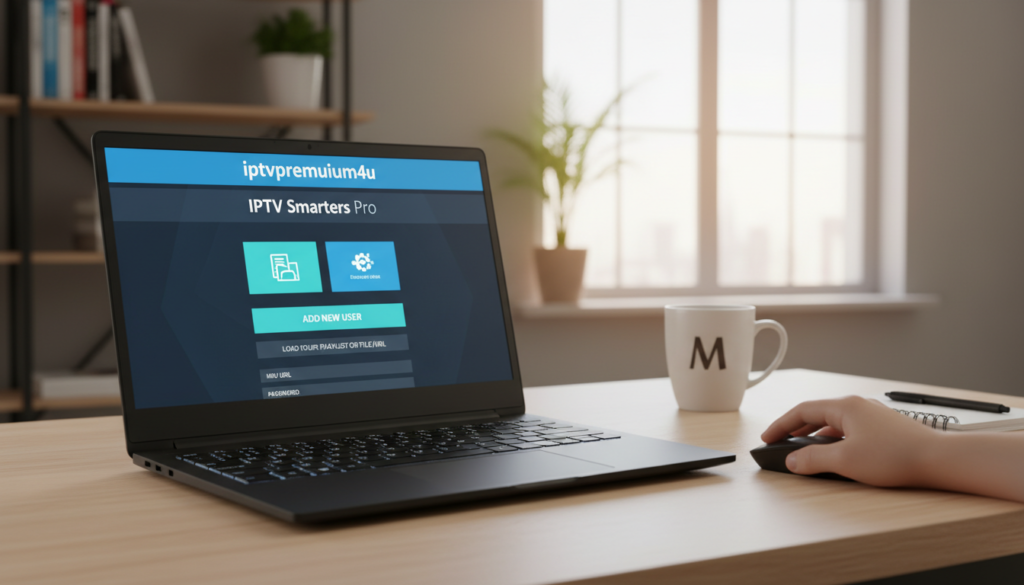
Open Add User, choose PLAYER API, then paste the server URL, username, and password your provider emailed you. Give the profile a name and save. Wait a minute while the app pulls channels and EPG.
M3U URL or playlist
Pick M3U PORTAL or import an M3U file. Paste the playlist URL (include http/https), add an optional EPG URL if provided, and import. The player builds categories automatically from the playlist tags.
Organize channels, EPG, and viewing controls
Use favorites, category filters, and country lists to reduce scrolling. Switch to Live or VOD to find schedules; if EPG is missing, check the provider’s EPG URL or time zone settings.
Troubleshooting quick fixes
- Buffering: test speed, prefer Ethernet, limit simultaneous streams, lower stream quality.
- No channels / Playlist error / Invalid URL: confirm credentials, remove extra spaces, ensure URL starts with http/https, and check provider status.
“Gather error text, time, and affected channels before contacting support.”
If issues persist, contact your provider with your account email and the error details. Respect terms and protect your privacy when sharing logs.
Conclusion
Here’s a short recap to help you choose the right setup and avoid common streaming issues.
Key takeaways: smarters pro is a flexible app and media player that works on multiple devices. Your experience depends mostly on the quality of your services, a stable network, and correct credentials.
Desktop pros: larger-screen viewing, easier multitasking, and multi-screen support. Cons: occasional Windows compatibility quirks, reliance on provider uptime, and buffering tied to network or server load.
Device comparison (quick):
PC: best performance and multitasking; longer setup time.
Firestick: remote-friendly and portable; limited multitasking.
Android: fast setup and wide app support; variable hardware quality.
Keep the minimum mindset: a steady internet connection, reasonable device resources, and a trusted download source matter more than tweaks. The player is a tool — legality depends on what you load. Only add sources you’re authorized to use and respect provider terms.
Next step: visit our IPTV Subscription page to compare services that offer Xtream Codes API or M3U, clear trial details, and email delivery.
Optimized FAQ (short answers):
What is IPTV Smarters Pro on PC? A desktop media player app that loads your provider’s streams and menus.
Is it free? A free tier often exists; paid options remove ads or add UI features.
What login do I need? Typically a server or M3U URL plus username and password.
How to fix buffering? Test speed, use Ethernet, reduce quality, and limit simultaneous streams.
No channels? Check credentials, ensure URLs start with http/https, and confirm provider status.
Mac support? Native Mac clients are limited; consider alternatives or a Windows environment.
Legal in the US? The player is legal; your use is legal only when you stream authorized content.
Quick report tip: If something fails, note the exact error, test a single channel, check speed, then contact provider support with time and error details for faster help.