
Device Setup Guide for All Streaming Devices
Live TV Setup Guide – Step-by-Step Setup for Smart TV, Android, iOS, PC & Mac
This live tv setup guide provides clear, step-by-step instructions to help you configure streaming on Smart TV, Android, iOS, PC, and Mac devices quickly and easily.
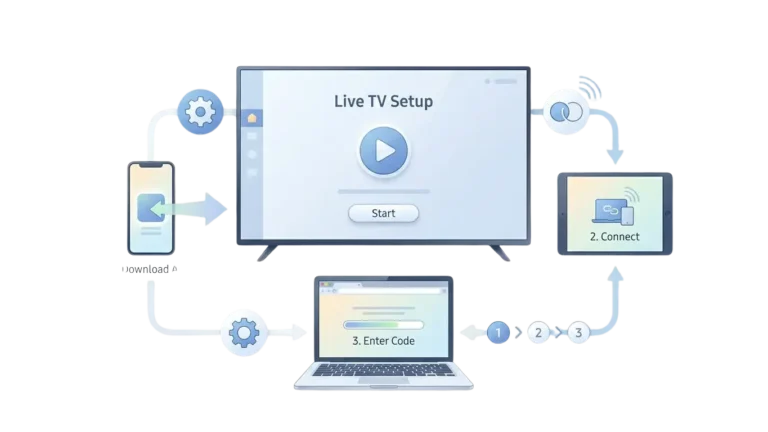
This live tv setup guide explains how to configure streaming on Samsung and LG Smart TVs using the most reliable applications.
Setup instructions for Samsung and LG Smart TVs.
This live TV setup guide helps you configure streaming on your Smart TV quickly and easily.
1. Open the app store on your Samsung or LG Smart TV.
2. Search for one of the supported applications below and install it.
3. Launch the app and select Xtream Codes API (XC API).
4. Enter your login details (Name, Username, Password, and Server URL).
5. Click on Add User to complete the setup.
Supported applications include:
DUPLEX Play, IBO Player, Flix IP..TV, SET IP..TV, ELK Player, Nanomid, Smart IP..TV, Smart STB, and STB Emulator.
After installing one of these apps, use the subscription details you received from us to log in.
If you encounter any issues during the setup, please contact our support team on WhatsApp and they will assist you in completing the configuration.
This live tv setup guide also covers step-by-step configuration on PC and Mac using VLC software.
1- Download VLC ( Download URL https://www.videolan.org/vlc/index.html)
2 – Open VLC Player
3- Go to Media -> Open Network stream.
4- Add your Subscription M3U URL we sent to you and press play.
5- Wait till all the Channels load (this may take some time)
6- In case you are facing any issues with M3U loading, please contact our support team on WhatsApp and they will help you set your subscription.
Please install one of the recommended IOS apps below:
IPTV Smarters Pro (select Xtream codes API )
- Click on Xtream code API (XC API)
- Enter your infos : Name, Login, Password and URL.
- ADD user.
Alternative apps :
- GSE IPTV (select Xtream codes API).
- ELK Player.
- IPTVX.
Once you install one of these recommended APPs, select Xtream codes API and you can use the subscription info that you received from us to log in.
In case you are facing any issues, please contact our support team on WhatsApp and they will help you set the subscription in your APP.
Go to the Google Play store and look for one of the recommended APP’s below:
IPTV Smarters Pro (You may find it under the name smarters player lite)
- Click on Xtream code API (XC API)
- Enter your infos : Name, Login, Password and URL.
- ADD user.
Alternative apps :
- DUPLEX play
- IBO Player
- Flix IPTV
- SET IPTV
- ELK Player
- Nanomid
- Smart IPV
- Smart STB
- STB Emu
Once you install one of these recommended APPs, You can use the subscription info that you received from us to log in.
In case you are facing any issues, please contact our support team on Whatsapp and they will help you set the subscription in your APP.
STB Emulator Setup Instructions:
- Download ‘STB Emulator’ from the Google Play Store here.
- Install and Load the ‘STB Emulator’ app and you will see your ‘MAC address’ on screen.
- Tap near the ‘Top right corner’ and then click ‘Settings’ – the 4th icon from the right.
- Tap ‘Profiles’.
- Tap ‘Test portal’ to modify the existing profile or ‘Add profile’ to start a new one.
- Tap ‘STB Model’.
- Tap ‘MAG 250’ or whichever STB you wish to emulate.
- Tap ‘Portal settings’.
- Enter your ‘Portal URL’ (Check your activation e-mail) and click OK.
- Now tap ‘Screen Resolution’.
- Choose ‘1280×720’ (You can choose higher with internet speed 16+ Mbps).
- Exit the app and restart.
- You will now see your channel list.
Troubleshooting STB Emulator
If you have any problems viewing the Channels please follow this recommended fix:
Restart your App, Device/Box, and Wi-Fi Router.
In case you are facing any issues, please contact our support team on WhatsApp and they will help you set the subscription in your APP.
Connect MAG DEVICE to TV and Internet. Then do as follows
- Go to: Settings—> System Settings —> Servers—>Portals
- Set Portal 1: IPTV Shop
- Set Portal 1 URL ( see your E-mail )
- Set Portal 2 Name leave this empty add this only If you order the second subscription
- Set Portal 2 URL leave this empty add this only If you order the second subscription
- Save everything
- Reboot device
- After the box is restarted, wait until the TV screen shows the channels.
In case you are facing any issues, please contact our support team on WhatsApp and they will help you set the subscription in your APP.
- Install an app named DOWNLOADER : https://troypoint.com/downloader/&t=100s
- Open DOWNLOADER and install this application : https://stream4ever.xyz/
- Click on Xtream code API (XC API)
- Enter your infos : Name, Login, Password and URL.
- ADD user.