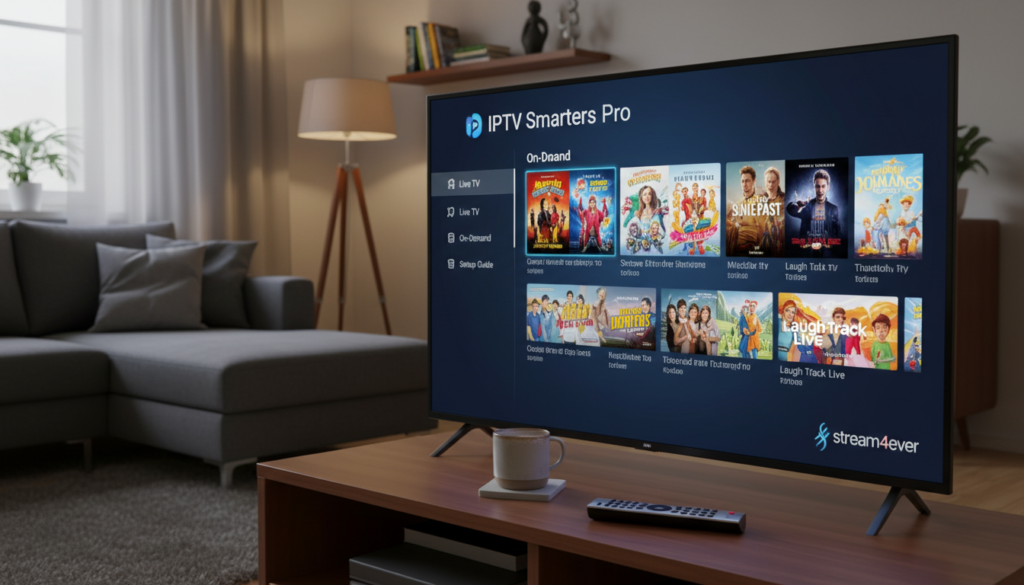
Curious whether this app can really replace your old streaming setup? If you want to add legally purchased playlists and watch on multiple devices, this guide walks you through the way it works in the United States.
IPTV Smarters Pro is presented by its developer as a standalone media player that does not host or sell channels. You supply your own subscription details, typically via an M3U playlist URL or an Xtream Codes API login, and the app plays your streams and VOD content.
You’ll learn what you need to use the app, how setup works on major devices, and how to add playlists. The guide will cover features like EPG, VOD, multi-screen, and parental controls.
This introduction is for cord-cutters, travelers, multi-device households, and anyone managing multiple playlists. I’ll also point you to comparison notes, troubleshooting tips, legal considerations for the United States, and internal links to Best IPTV Providers and IPTV Sub.
Key Takeaways
Setup requires your subscription credentials (M3U or Xtream Codes API).
Performance depends on provider/server quality and your home network.
EPG and VOD layout vary based on playlist metadata.
The app is a player only—no channels are hosted by the developer.
Most import and buffering issues are fixable with basic troubleshooting.
Table of Contents
What IPTV Smarters Pro Is and How This IPTV Player Works
Learn how the player reads your feeds and what credentials, URLs, or files you should have ready.
IPTV app vs. subscription: what to prepare
The app is a media player; it does not supply channels or subscriptions. You must have your playlist URL, Xtream Codes-style login (if provided), and any EPG links ready before setup.
How playback reads M3U, JSON, and provider APIs
The player parses an M3U file or URL into groups, categories, and channel entries. Good provider metadata yields clean names and logos. JSON-style lists work similarly when your provider exports that format.
API logins (Xtream Codes type) give a structured import of Live, VOD, series, and EPG. That method often updates more reliably than raw files.
“Smarters Pro is a standalone media player and does not provide, host, sell, or promote TV channels or streaming services.”
Privacy & developer notice
The developer declares no data collected and no third-party sharing. Network traffic still goes to your provider’s servers, so verify official terms and disclaimer pages before adding content.
Source Type
What you add
What the player provides
M3U URL / File
Stream entries, names, logos
Grouping, playback controls, EPG mapping
JSON Playlist
Structured list of channels and VOD
Searchable catalogs and series views
Provider API (Xtream)
Live, VOD, Series, EPG
Automated imports and stable updates
IPTV Smarters Pro Setup on Supported Devices in the United States
This section shows how to get the player running on common US devices and how to add your subscription details.
Supported devices overview
Common installs include Fire TV Stick (sideload), Android phones and Android TV (Play Store or APK), iPhone/iPad via App Store, and desktop builds for Windows and macOS (Apple Silicon required for recent versions).
Before you install — quick checklist
Stable Wi‑Fi or Ethernet and enough free storage.
Your provider details: M3U URL or Xtream Codes credentials and optional EPG URL.
Decide on a VPN for privacy if desired; keep device software updated.
Firestick and Android quick steps
Firestick: enable unknown sources, install Downloader, fetch the APK, install, then open and enter your playlist details.
Android: grab the app from Google Play or sideload the APK; grant network and storage permissions for smooth playback and caching.
M3U and Xtream Codes setup
To add a playlist with an M3U URL, give it a name, paste the URL, and add EPG if separate. For an Xtream Codes API login, enter server/portal URL, username, and password — this often automates channels and EPG updates.
Device
Install Method
Notes
Fire TV Stick
Sideload APK (Downloader)
Use remote; keep OS current for compatibility
Android TV / Phones
Google Play / APK
Permissions for storage/network improve caching
iPhone / iPad / macOS / Windows
App Store / Desktop installer
iOS 15.6+; macOS 12.5+ on Apple Silicon recommended
Features, Performance, and Common Issues to Know Before You Stream
Before you stream, know which features affect day-to-day playback and where common issues come from.
Core features you’ll use daily include Live TV browsing with EPG grids, VOD and series libraries, favorites, search, subtitles, and sorting. EPG often arrives via provider API or a separate guide URL; time zone mismatches can make schedules look wrong.
VOD and series rely on provider metadata for posters, episode order, and descriptions. Missing art or names usually means the source feed is incomplete, not the app.
Multi-screen and multi-playlist let you run split views or test backup providers. Low-powered devices may struggle with simultaneous streams.
Privacy & security: the developer lists “no data collected” and local playlist storage. Still, use strong provider passwords, avoid sharing credentials, and keep the app updated.
“Use a wired connection for heavy streaming and re-import playlists if favorites disappear after an update.”
Player
Platforms
Playlist support
EPG
Casting
iptv smarters pro
Android, iOS, Fire TV, Windows
M3U / Xtream
Good (API)
Google Cast
Player Lite
Android, iOS
M3U
Basic
Limited
TiviMate
Android TV
M3U / Xtream
Strong
No
Perfect Player
Android, Windows
M3U
Configurable
No
GSE Smart IPTV
Cross-platform
M3U / Xtream
Good
Yes
Quick fixes: test internet speed, reboot device, try Ethernet, clear cache, re-import playlist.
Buffering: switch to lower-quality stream or confirm provider capacity.
Import/login errors: check exact URL format, expiration tokens, or use Xtream API if M3U loops on iOS.
Conclusion
Here’s a compact recap of the guide with clear actions so you can get your media player running smoothly.
You now understand what iptv smarters pro is, how the app differs from a subscription, and how to install and configure it on common US devices.
Key takeaways:
– Your provider controls channel quality and buffering.
– Xtream Codes API often yields better EPG and VOD imports than raw M3U files.
– Keep credentials secure and re-import or switch login methods to fix most issues.
Recommended next steps:
– Choose your device and install the app.
– Add your M3U URL or Xtream login, verify EPG/time zone, set favorites, and test playback at different times.
For provider comparisons and plain-English subscription details, see Best IPTV Providers and IPTV Sub.
Legal note: the player is a standalone media tool and does not host content. You are responsible for using legally acquired playlists and respecting US copyright law.
FAQ
What is IPTV Smarters Pro and how does this media player work?
IPTV Smarters Pro is a standalone media player that organizes and plays live channels, video on demand, and series from playlists and provider APIs. You load an M3U URL, JSON playlist, or connect via Xtream Codes-like API credentials. The app does not host channels — it only requests and plays streams provided by your subscription. The player supports multiple formats, audio tracks, and subtitle streams to improve your viewing experience.
What do you need before installing the app?
Before you begin, have a valid subscription or playlist URL, your username/password or API details, and a stable internet connection. Check device storage, enable necessary permissions, and consider a VPN if you want privacy or region-unlocked content. Also confirm your device supports the app version you plan to install.
Which devices are supported in the United States?
The player runs on Amazon Fire TV/Firestick, Android phones and Android TV boxes, Samsung and LG smart TVs that allow sideloading or have compatible builds, iPhone and iPad via the App Store, and macOS/Windows desktops. Feature availability may vary by device and app version.
How do you install on Firestick?
On Firestick, enable Apps from Unknown Sources, install the Downloader app, then sideload the APK using the Downloader URL or USB method. Grant storage and overlay permissions when prompted. After installation, sign in with your playlist or API credentials and allow any EPG or guide permissions.
How do you install on Android devices and Android TV?
On Android phones and tablets use Google Play where available, or sideload the APK if needed. For Android TV, use the Play Store on the TV or sideload with a USB drive or adb. Ensure you pick the correct ARM or x86 build for your device and grant playback and storage permissions after install.
How do you set up on iOS and iPadOS?
Install from the App Store if the app is listed. After installing, enter your M3U URL or API credentials. iOS may require different playlist parsing behavior, so double-check playlist formatting if channels fail to appear. If the app isn’t on the App Store, the developer may offer TestFlight or enterprise options.
How do you install on Windows and Mac?
Use the official desktop builds if offered, or run the Android APK in an emulator. On Windows, check system requirements and allow the app through any firewall. On macOS, follow the developer instructions for signing in and loading playlists. Desktop builds often include more robust player controls and windowed multi-screen support.
How do you add a playlist using an M3U URL?
Open the app, choose Add Playlist or Add User, select M3U URL, paste the link, name the playlist, and save. The app will parse channels, groups, and EPG data if embedded. If import fails, confirm the URL works in a browser and that your provider allows external players.
How do you add a subscription using Xtream Codes API?
Select the API or Xtream Codes option, then enter your server URL, username, and password as provided by your service. The player will fetch channels, VOD, and EPG from the API. Ensure your provider supports the specific API format; some use slight variations that require corrected fields.
Can you manage multiple playlists and subscriptions?
Yes. The app supports multiple playlists and profile switching. You can add several M3U URLs or API logins, label each source, and switch between them. This helps organize channels, regional feeds, or separate family profiles without overwriting data.
What core features shape your viewing experience?
Expect live TV with channel lists and groups, an EPG guide, VOD and series libraries, catch-up in supported setups, favorites, search, parental controls, and subtitle/audio track selection. The app often includes a built-in player with adaptive bitrate support and hardware acceleration where available.
How do you set up the EPG guide?
Add EPG XMLTV files or ensure your provider’s API provides guide data. Match EPG channel IDs with playlist channel IDs if names differ. Use the app’s EPG import or manual mapping tools. Proper EPG setup improves Live+EPG viewing and program info accuracy.
How are VOD and series organized?
The app parses metadata from provider feeds or playlist tags to group movies and series by title, season, and episode. You can sort by date, alphabet, or genre. If metadata is missing, you can manually edit titles or rely on your provider’s VOD structure.
Does the app support multi-screen and casting?
Yes. Many builds support multi-screen playback and Google Cast integration for big-screen streaming. Casting behavior depends on your device and network. Some features like multi-view work better on high-end Android TV boxes and desktop builds.
What parental controls are available?
You can create profiles with PIN protection, hide adult categories, or restrict VOD/watch time depending on the build. Use profile-level restrictions to keep children away from specific channels or categories.
What privacy and security notes should you know?
The developer states the app is a local player and does not host content. Playlists are stored locally unless cloud sync is enabled. Use a reputable VPN and vet providers to protect your data. Review app permissions and update to secure builds when available.
Is this player legal in the United States?
The app itself is legal as a media player. What may be illegal is accessing copyrighted channels or content without the right permissions. You are responsible for the legality of the streams you load. Use licensed providers and respect copyright laws.
What common issues should you expect and how do you troubleshoot them?
Common problems include buffering, long channel load times, playlist import failures, and audio sync issues. Start by testing your internet speed, switch to a wired connection if possible, clear app cache, update the app, and re-import playlists. If channels fail to load, verify the M3U/JSON URL or API credentials with your provider.
How do you fix buffering and slow navigation?
Reduce stream quality or switch to a different stream source, enable hardware acceleration, close background apps, or use a wired Ethernet connection. Restart your router and the device, and check if the provider reports server-side issues. A VPN can help with throttling but may add latency.
How do you fix playlist import failures and parsing loops?
Confirm the playlist URL is reachable in a browser, ensure correct file format (M3U/JSON), and check for authentication tokens or IP locks from the provider. If parsing loops occur, try a fresh import, rename the playlist, or ask the provider for a direct API endpoint.
How do you fix audio issues, missing channel names, or favorites not loading?
For audio problems, try different audio track options or disable passthrough. Missing icons or channel names often mean incomplete metadata — update the playlist or map channel IDs to EPG. If favorites fail, clear the app cache, re-save favorites, or update the app to the latest stable build.
Where can you get support if something goes wrong?
Use the app’s support or feedback option if available, consult your subscription provider, and check community forums like Reddit or XDA for device-specific tips. For installation and device issues, consult Amazon, Google, or Apple support resources based on your device.