
This step-by-step guide shows you how to get the iptv smarters app safely, install it on Windows, add your content, and start streaming live TV and VOD inside one interface.
What you’ll achieve: by the end you can download the correct package, install the application on Windows, add an Xtream Codes login or an M3U/M3U8 link, and watch legally owned media.
Quick checklist: a stable internet connection, a valid subscription or legally owned media, and either an Xtream login or an M3U/M3U8 link. Smarters Pro is a standalone media player that does not host or sell content; you add your own inputs.
This guide is organized so you can jump to download → requirements → install → setup → troubleshooting → pros/cons + comparison → FAQ. Performance can vary with playlist size and provider reliability, so you’ll find fixes for parsing loops, buffering, and missing EPG data. Note that store listings may use different names (Smarters Pro / IPTV Smarters Pro); you’ll learn how to spot legitimate listings and avoid unsafe mirrors.
Key Takeaways
- You will learn to download and install the iptv smarters app safely on Windows.
- Prepare an internet connection, valid subscription or owned media, and an Xtream or M3U/M3U8 link.
- Smarters Pro is a media player, not a content provider — choose legal sources.
- The guide covers install, setup, troubleshooting, requirements, and legal tips.
- Performance depends on playlist size and provider; fixes for buffering and EPG are included.
What IPTV Smarters Is and What It Isn’t
Before you download anything, know exactly what this player does and what it won’t do for your streams.
iptv smarters is a standalone media player application that organizes and plays streams you supply. It does not host or sell channels or subscription services. Think of it as the viewer; your subscription or files are the source.
The key difference is simple. The application is the interface and player. Your IPTV subscription or playlist provides channel lists, VOD libraries, EPG guide data, and server access. Without valid service credentials or legally owned files, the player has nothing to show.
Common inputs you’ll add are:
- Xtream Codes login (server/portal URL + username + password)
- M3U / M3U8 playlist URLs (often with a separate EPG URL)
- Local or remote file playback from device storage or network shares
Who benefits most? Cord-cutters with a legal plan, travelers wanting one interface on multiple devices, and users who want live TV, movies, and shows in a single place.
| Feature | Provided by Player | Provided by Your Service |
|---|---|---|
| Playback interface | Yes | No |
| Channel list & VOD | No | Yes |
| EPG / Guide data | Reads and displays | Supplies data |
| Local file playback | Supported (when available) | Not applicable |
IPTV Smarters App Download: Safe, Official Sources Only
Before you click download, learn how to verify official store listings and avoid risky mirrors.
How to spot a legitimate listing
Check the exact name and the seller. On Apple, for example, the seller is listed as Tech Smarters Private Limited. Look for consistent branding across the store, developer site, and screenshots.
Confirm recent updates and changelogs. Frequent bug-fix releases and clear version notes are positive signals.
- Match app name and icon to official site.
- Verify developer/seller name and contact info.
- Check update history and recent changelog entries.
- Scan user ratings and reviews for patterns—not a single trust signal.
Why you should avoid unofficial mirrors and modded builds
Security risk: cracked or mirror downloads can bundle malware, steal credentials, inject ads, or alter player behavior.
If a source asks for extra permissions or tries to install outside the official store, stop immediately.
What “In‑App Purchases” and evaluation modes mean
In‑App Purchases often let you unlock premium features or remove limits after installing the basic package. You may be able to install for free and upgrade inside the app.
Evaluation mode usually gives trial-like access: limited profiles, disabled advanced features, or temporary time limits. It can feel unstable with very large playlists or an unreliable provider.
Simple verification checklist
- Official store listing with correct seller name
- Recent updates and clear changelog
- Consistent branding and support contact
- Reasonable user ratings; treat ratings as one signal
| Check | What to expect | Action if missing |
|---|---|---|
| Developer / Seller | Known company name (e.g., Tech Smarters) | Don’t install; research publisher |
| Update cadence | Frequent fixes and version notes | Prefer official store builds |
| User ratings | Mixed but mostly positive reviews | Read recent reviews for complaints |
Decision rule: official store = proceed; random download site or modded build = stop.
“Laws and liability vary by country; always use legally obtained streams and follow local regulations.”
Legal and safety note: You must only use legally obtained media and valid subscriptions. Laws differ by country; follow U.S. rules and your local regulations. If you’re unsure, don’t install—ask your provider or seek official support.
Minimum System Requirements and Compatibility
Check your PC specs and network before you add large playlists — small hardware or a weak connection will limit playback.
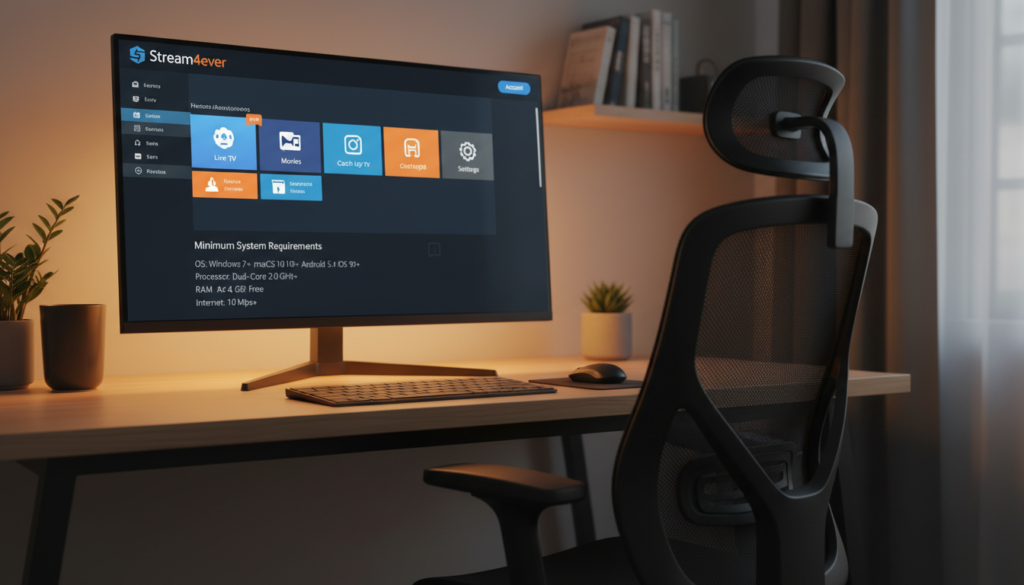
Windows basics: a modest modern CPU and enough RAM matter, but network stability often affects live playback more than raw power.
| Specification | Minimum | Recommended |
|---|---|---|
| CPU | Dual‑core 2.0 GHz | Quad‑core 2.5+ GHz |
| RAM | 4 GB | 8 GB+ |
| Free storage | 2 GB | 10 GB |
| Network | 5 Mbps | 25 Mbps (Ethernet preferred) |
Network, resolution, and household use
Wi‑Fi congestion or a weak ISP link will cause buffering even on fast PCs. Use Ethernet where possible and place your router away from interference.
For video quality pick streams by household demand: 720p for limited bandwidth, 1080p for single viewers on a 10–25 Mbps plan, and 4K only if you have stable 25+ Mbps per stream.
Apple ecosystem (reference)
If you also use Apple devices, note the minimum OS levels: iOS/iPadOS 15.6+, macOS 12.5+ on Apple M1+ Macs, tvOS 15.6+, and visionOS 1.0+. Newer versions mention better handling of large playlists and memory optimizations.
Large-playlist performance and simple fixes
Big M3U lists take longer to parse and can freeze low‑RAM systems on first load. Parsing is often a one‑time delay but may recur when updating lists.
- Limit loaded playlists and use provider categories.
- Avoid opening multiple huge lists at once.
- Keep the application updated for performance fixes.
How to Install IPTV Smarters on a Windows PC
Get your Windows PC ready with two simple install paths so you can run the player with minimal fuss.
Native Windows installer (.exe)
Download the official .exe from the vendor site or a verified store listing. Verify the publisher name and digital signature when possible.
Run the installer, accept only needed permissions, and follow on-screen prompts. Launch the application and allow any in-app updates.
Emulator fallback (Android on Windows)
If no native build exists, install a reputable Android emulator and sign into Google Play. Search the official listing and install through Play to reduce risk.
Avoid random APK bundles from unknown sites; they often carry security risks.
First launch checklist
Confirm time zone and format. Allow only necessary permissions like network access. Choose the default player settings that match your hardware.
Adjust key options: hardware decoding on/off, default stream format, and subtitle preferences. Learn the main interface layout: Live, Movies, Series.
“If streams fail, first restart the application, then restart the emulator or PC, and check Windows firewall or router rules.”
Need support? Check the built-in logs or contact your service provider before reinstalling.
IPTV Smarters App Setup: Xtream Codes API and M3U Playlists
Start by gathering the exact credentials and links your provider gives you — that saves time.
Before you start: get the portal/server URL, username, password, M3U/M3U8 playlist URL, and the EPG URL if provided.
Xtream Codes API — quick steps
- Open Add Profile → choose Xtream Codes.
- Name the profile, paste server URL, enter username and password.
- Save and wait for channels and VOD to sync.
M3U / M3U8 playlist setup
- Choose M3U import, paste the playlist URL or load a local file.
- Name the list and allow parsing to complete; large playlists may take time.
EPG and organization
EPG is the program guide mapped to channels. Add or verify the EPG URL, refresh it, and adjust time zone if shows are misaligned.
Organize with categories, pin channels, and use favorites for daily viewing. Clear history when you want a fresh experience.
Playback & optional features
Look for full-screen, subtitle and audio selection, and stream-format toggling. Some versions add multi-screen, catch-up/archive, and casting—these depend on your provider.
| Item | Xtream Codes API | M3U / M3U8 |
|---|---|---|
| Required fields | Server URL, username, password | Playlist URL or local file (EPG optional) |
| Setup time | Fast sync if server responds | Parsing may be slow for large playlists |
| Best for | Full channel + VOD + EPG | Simple lists or single-source feeds |
| Notes | Supports categories and favorites | EPG mapping may require manual URL |
“Best results depend on provider metadata and server support more than the app alone.”
Common Setup Errors and Troubleshooting Fixes
When setup goes wrong, clear steps help you fix login, parsing, and playback issues fast. Below are quick checks and fixes you can try in minutes.
Login failed
Likely causes: wrong portal URL, mistyped username/password, or expired subscription.
Fix it: check the portal format, retype credentials slowly, and confirm your account with the provider or their status page.
Playlist won’t load or gets stuck parsing
Large lists and truncated server replies often hang imports. Wait longer on first parse or try a smaller list.
Clear the app cache or re-import after a fresh start. If truncation persists, ask your service for a lighter playlist.
| Symptom | Likely cause | What you do next |
|---|---|---|
| Login failed | Wrong URL / expired creds | Verify portal, re-enter login, check subscription |
| Parsing loop | Huge playlist / truncated response | Try smaller list, clear cache, switch to Xtream if available |
| No channel names | Provider metadata missing | Use sort/search, rebuild favorites, contact provider |
| Buffering | Network or decode mode issue | Run speed test, use Ethernet, switch decode mode |
| EPG missing | Wrong EPG URL or time zone | Match EPG URL, refresh guide, set correct time zone |
Crashes or freezing
If services drop or the application freezes, wait and retry. Switch networks, check provider status, and only reinstall as a last step.
“If you follow these steps you can restore most playback and guide issues without reinstalling.”
Pros, Cons, and How It Compares to Other IPTV Players
Choosing the right player depends on whether you want simple channel surfing, deep VOD browsing, or family multi-screen features.
Pros that matter
- Clean interface: easy navigation and quick access to favorites and search.
- Playlist support: works with common inputs like M3U/M3U8 and Xtream Codes for fast setup.
- Multi-platform availability: runs on Windows, Android-based systems, and other platforms depending on the version.
- Feature depth: organization tools, EPG mapping, and optional casting or catch-up when supported by your provider.
Cons to be aware of
- Reliability often depends on your service provider’s servers and metadata quality.
- Large playlists can cause slow parsing or temporary freezes during import.
- Some UI limits make channel discovery and naming inconsistent in certain builds.
Quick comparison: Smarters vs. similar players
| Player | Setup methods | EPG handling | Multi-screen & casting | Stability with large lists |
|---|---|---|---|---|
| iptv smarters pro | M3U, Xtream | Good, manual mapping | Available in some versions | Good with trimmed lists |
| Player B | M3U, local files | Basic, limited mapping | Limited casting | Struggles with huge playlists |
| Player C | Xtream, portal logins | Automated EPG linking | Strong multi-screen | Optimized for large lists |
| Player D | Local file focus | No EPG | None | Stable for small libraries |
How to pick the best player for your needs
If you mainly watch live channels, favor a player with robust EPG and fast channel switching. For movies and shows, prioritize a tool with strong VOD indexing and search.
For family setups, choose a build that supports multi-screen and profiles. If you cast often, confirm casting is supported in your version before buying.
Note: feature sets differ by version — check supported features for your specific build and provider before committing.
Conclusion
Finish strong: verify your download is from an official source, confirm system compatibility, and run a quick playback test using the native Windows installer or an emulator. Add your Xtream or M3U credentials, then check EPG and playback settings.
Success factors: a reliable provider, correct portal URL and login, a manageable playlist size, and a stable internet connection will make the process smooth.
Security reminder: use only legal sources, avoid modded downloads, and protect your credentials like any other password to keep your media safe.
FAQ
What is IPTV Smarters and do you need a subscription? It is a media application that plays streams you provide. You need a valid subscription or legally owned playlist to view channels and VOD.
Is IPTV Smarters legal in the United States? It depends on what you stream; using legally licensed sources is allowed, while unlicensed content can violate laws.
What’s the difference between Xtream Codes API and M3U? Xtream sends portal login data and EPG for a full service; M3U is a playlist file or URL that may need separate EPG mapping.
Why is my playlist stuck on parsing? Large or truncated lists often hang; try a smaller playlist, clear cache, or ask your provider for a trimmed list.
How do you add or fix EPG in IPTV Smarters? Add the EPG URL provided by your service, refresh the guide, and set the correct time zone to align program listings.
What internet speed do you need to stream smoothly? Aim for 10–25 Mbps for HD and 25+ Mbps per 4K stream, with Ethernet preferred for stability.
Can you use IPTV Smarters on Windows PC? Yes; use the native installer when available or a trusted Android emulator as a fallback.
Does IPTV Smarters include channels? No; the application does not provide channels—your subscription or playlist supplies content.
If something fails, consult the troubleshooting table (login, parsing, buffering, EPG) before reinstalling.
If you’re looking for a full service review, check our detailed guide on Xtreme HD IPTV.