IPTV Smarters Firestick setup is a step-by-step guide that helps you install the app on your Fire TV device, sign in with provider details, and fix common errors that stop playback.
You’ll learn to enable the permission for unknown apps, use Downloader to install the APK, and log in with Xtream Codes API or an M3U URL. When setup is correct, you typically see Live TV, Movies, and Series.
Understand that IPTV Smarters is a player app: your results depend on your service, network, and Fire TV model. This tutorial is beginner-friendly and focused on practical fixes you can try right away.
The workflow covers performance settings that affect buffering, like player choices, EPG/time settings, subtitles, and parental controls. Troubleshooting follows a reliable pattern: symptom → likely cause → exact fix, starting with quick checks like typos, connectivity, and storage.
Key Takeaways
- You will install and sign in to the app on your Fire TV device.
- Enable Unknown Sources, use Downloader, then log in with Xtream Codes or M3U.
- The player needs a working playlist and good internet to show Live TV, Movies, and Series.
- Troubleshooting is stepwise: check typos, network, and storage first.
- Settings like player selection and EPG impact buffering and performance.
- Legality depends on content sources and your subscription rights in the United States.
What IPTV Smarters Is and How It Works
Understand the basics: the app you install is the media player that organizes streams and presents menus. Your subscription or provider supplies the login, playlists, and the actual channel lineup. Without a valid service your player stays empty.
App vs. subscription
The player is a tool; your subscription is the source. You must add provider credentials or a playlist URL to see channels and on‑demand content.
Does the app include channels?
No — the app does not bundle channels. Add a provider login or a playlist to load the channel list and guide data.
How playlists and guide data power the app
There are two common login options: an Xtream Codes style login (server URL + username + password) or an m3u url that points to a playlist file. Both supply stream links and channel names.
EPG is the electronic program guide. It shows now/next details and improves navigation, but it only works when your provider sends accurate EPG data.
| Login method | What you enter | What it provides |
|---|---|---|
| Xtream Codes | Server URL, username, password (codes) | Live channels, VOD, EPG |
| M3U URL | Link ending in .m3u | Playlist streams and channel list |
| Branded versions | App variant name (e.g., iptv smarters pro / smarters pro) | Same setup options, same player features |
Firestick Requirements and Compatibility
Before you install anything, confirm your device meets basic hardware and network needs for smooth streaming. A modern Fire TV device with adequate storage and a current OS version gives the best playback for live channels and on‑demand media.
Minimum device and streaming requirements for smooth playback
At minimum you should run a recent Fire OS version and have 1.5–2 GB free storage for sideloaded APKs and cache. Use a stable Wi‑Fi connection or an Ethernet adapter when possible.
Internet speed: plan for 8–10 Mbps for HD and 25+ Mbps for 4K streams to avoid buffering during peak times.
Compatibility notes for Fire TV devices and common alternatives
Newer Fire TV Stick models, Fire TV Stick 4K/4K Max, and Fire TV Cube handle high‑bitrate streams, fast channel switching, and heavy EPG loads best. Older devices may slow down and need lower stream formats or lighter players.
- Performance scales: older devices struggle with high-bitrate content and large EPG files.
- Alternatives: Android TV devices, some smart TVs, and IPTV boxes will often accept the same credentials and players.
- Before you start: verify Fire OS version supports sideloading, confirm free space, and check your remote for typing.
Tip: If you plan to watch sports or 4K media, prioritize newer hardware and a wired connection for the most stable experience when you use iptv on your device.
Prepare Your Firestick: Enable Apps From Unknown Sources
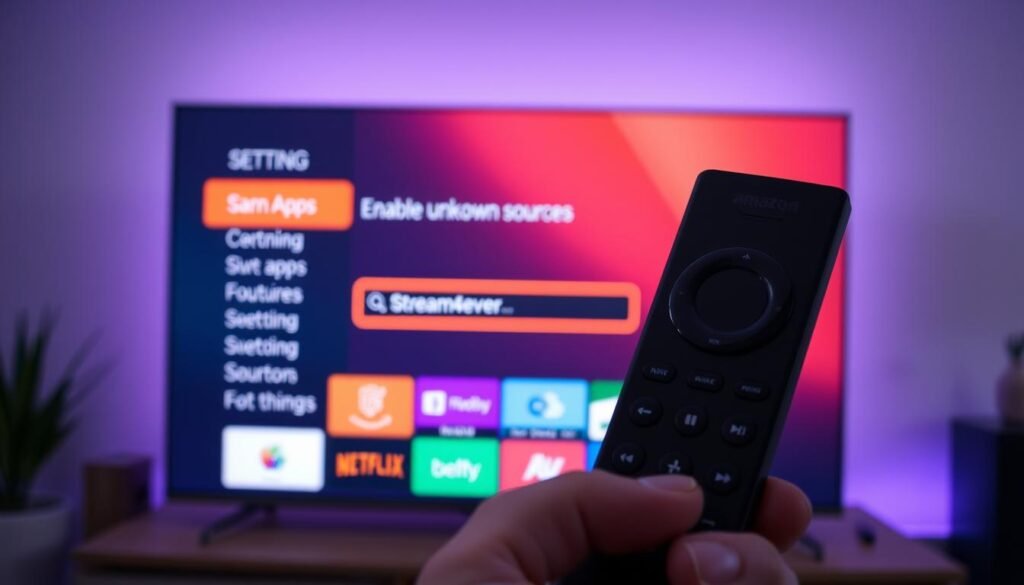
Start by giving the Downloader app permission to install unknown apps. This is the usual step when you plan to sideload a third‑party player onto your Fire TV.
Where to find the setting
Navigate: Settings → My Fire TV → Developer Options → Install unknown apps. Then toggle the permission for Downloader. If your device shows “Apps from Unknown Sources,” enable it for the installer you will use.
Why this permission is required
Fire OS blocks APK installs by default. You must explicitly allow the installer app to add third‑party packages so the system trusts the specific installer, not every unknown app.
Safety tips before sideloading
- Make sure you use reputable download sources and avoid random shortened links.
- Make sure to verify the app name and icon before entering your provider username or password.
- After you install, disable unknown-app installs again to reduce risk.
| Action | Why it matters | Quick tip |
|---|---|---|
| Enable Downloader in Developer Options | Allows APK installs from a specific installer | Only enable the installer you trust |
| Use a trusted URL | Prevents malicious or corrupted packages | Avoid shortened or unknown links |
| Disable permission after install | Reduces attack surface on your device | Re-enable only when updating |
Install IPTV Smarters on Firestick Using the Downloader App
Follow a simple numbered process to download, install, and pin the player so you can add your playlist after first launch.
- Open the Amazon Appstore on your Fire TV and search for Downloader. Install the app.
- Launch Downloader and accept permission prompts that allow it to save files.
- In the URL field, type the IPTV Smarters download url provided by your source and tap Go.
- When the APK finishes downloading, choose Install. This adds the app package to Fire OS.
- After install, pick Done if you plan to delete the APK, or Open to launch the app now.
- If prompted, confirm deletion of the APK to free space—this keeps your device responsive.
Notes on choices and prompts:
- “Install” writes files to your device; always use it for trusted packages.
- “Cancel” stops the process. Use it if the file looks wrong.
- “Done” closes the installer and returns you to Downloader; delete the APK afterwards.
- “Open” runs the app so you can set up a user with Xtream Codes or an M3U playlist.
Pick a clean version: If you find multiple Smarters or smarters pro listings online, choose a current, trusted build. Avoid modified APKs and confirm the package installs cleanly on your device.
To pin the app, go to Your Apps & Channels, highlight the app, press the menu button, then select Move → Move to front. Keep at least 200–300 MB free before installation to avoid downloader errors and slow installs.
iptv smarters firestick Login and Setup
When you open the app for the first time, follow the prompts to accept terms, pick a device profile, and choose the login method your provider supplied.
Xtream Codes API login (server URL)
- Select the Xtream Codes option, then enter the Server/Portal URL exactly as given.
- Type your username and password. Even one wrong character breaks the login.
- Name the profile, then confirm to import. Wait while channels and EPG sync.
M3U playlist URL login
- Choose “Load Your Playlist or File/URL.”
- Give the playlist a name and paste the m3u url (usually ending in .m3u).
- Optionally add an EPG URL if your provider gave one, then select Add User.
Add User pulls your channel list, categories, VOD libraries, and guide data into the player. A successful import shows the main tiles: Live TV, Movies, Series.
- Quick checks: play one live channel, open a movie, and view the EPG grid.
- Confirm time zone and time format for correct guide times.
Privacy tip: Treat server URLs, usernames, and passwords like passwords. Do not share screenshots that reveal them.
Optimize IPTV Smarters Settings for Better Streaming Performance
Fine-tuning player and guide settings can cut buffering and speed up channel changes on your device.
Player choices and stream formats
First, pick a decoder. Try the internal player, then test an external player if available. Different stream formats (HLS vs MPEG‑TS) affect stability and channel switching speed.
Optimize in this order: set player defaults, adjust EPG/time, change subtitle behavior, apply parental controls, then test playback for improvements.
EPG, time format, and guide cleanup
Set the correct time zone and time format so the now/next labels match live programming. Trigger an EPG refresh after import.
Hide unused categories to reduce guide clutter when the app supports it. This makes navigation faster and cleaner.
Subtitles, image tuning, and parental controls
Turn subtitles off by default if you don’t need them. If the picture looks washed out, tweak color and sharpness in the image settings and save changes before returning to playback.
Use parental controls to block adult groups or specific categories. Pick a PIN you will remember; controls vary by app version.
Network stability tips
Move closer to your router or use 5 GHz Wi‑Fi to reduce interference. Restart your modem/router occasionally and prefer an Ethernet adapter if possible.
Only use a VPN if your ISP throttles streaming or you need privacy. A VPN can add latency and may worsen buffering.
| Setting | Action | Why it helps |
|---|---|---|
| Player/Decoder | Switch internal/external | Improves decode speed and channel switching |
| EPG & Time | Set time zone, refresh guide | Aligns now/next and reduces guide errors |
| Subtitles & Image | Disable if unused; adjust color | Reduces CPU load; improves picture quality |
| Network | Use 5 GHz or Ethernet | Stabilizes bandwidth and reduces buffering |
Common Install and Buffering Problems and How to Fix Them
When installs fail or streams stutter, follow a short checklist to find the cause fast.
Downloader errors and failed APK installs
Make sure the installer has permission. If the download stops, confirm the url and free up storage. Re-download from a trusted source and retry.
App won’t open, black screen, or stuck on loading
Force stop the app, clear cache, reboot the device, then reinstall if needed. Verify Fire OS compatibility for the build.
Xtream Codes or M3U login failures
Double-check every character in the server, username, and password. For Xtream Codes and m3u url entries remove extra spaces. Ask your provider to reissue credentials if they expire.
Buffering, freezing, and slow channel switching
Test internet speed, switch to lower quality, and try a different player. Restart router and test at off‑peak times to see if the service is overloaded.
EPG not loading or channels missing
Refresh the epg, confirm the guide URL, check time settings, and re-import the user profile to restore missing channels.
| Problem | Likely cause | Fix |
|---|---|---|
| Downloader fails | No permission, wrong URL, low storage | Enable installer permission, verify URL, free space, re-download |
| APK won’t install | Corrupt file, blocked install | Confirm download finished, allow unknown apps, use trusted APK |
| Black screen / stuck loading | Cache issue, incompatible build | Force stop, clear cache, reboot, reinstall, update OS |
| Login failed | Typos, expired credentials, bad URL | Verify every character, remove spaces, ask provider to reset |
| Buffering / freezing | Slow net, provider overload, device limits | Check speed, switch quality, use Ethernet, limit background apps |
| EPG or channels missing | Bad EPG URL, wrong time zone, import error | Refresh EPG, set correct time, re-import playlist/profile |
If you use iptv smarters or iptv smarters pro, try these steps before contacting support. For branded builds like smarters pro, confirm you run the recommended version from your provider or service.
Legal, Safety, and Provider Considerations in the United States
Know where your streams come from and whether those sources have distribution rights in the United States.
Legal note: The app itself is a media player. Whether your viewing is legal depends on whether the iptv service you use has rights to distribute the channels and content in your region. Free playlists found online are often unauthorized and risky.
What a reliable provider looks like
A reliable iptv provider delivers stable streams at peak times, fast channel switching, accurate EPG, and genuine HD or 4K where advertised. It should provide clear login details (Xtream or an m3u/EPG) and responsive support.
Pros and cons of using the player on your device
- Pros: familiar TV-style interface, playlist and login support, EPG navigation, useful playback controls and features.
- Cons: performance depends on the provider; cheap services can oversell bandwidth, causing buffering, offline channels, and broken guide data.
| Criteria | What to expect | Why it matters |
|---|---|---|
| Stream stability | Minimal buffering, fast channel change | Keeps live sports and news watchable |
| EPG accuracy | Correct now/next data | Makes navigation reliable |
| Support & policies | Trials, refunds, timely help | Protects your purchase and troubleshooting |
Practical tips: make sure you test a trial, confirm refund and support policies, use Ethernet when possible, and only share credentials with trusted providers. If your ISP throttles streaming, consider a VPN cautiously — it can help, but may add latency.
Conclusion
Wrap up with a fast verification routine: prepare Firestick permissions, install via Downloader, then log in using Xtream Codes or an M3U url. After import you should see Live TV, Movies, and Series tiles.
Remember: iptv smarters and related smarters player builds are the interface only — your provider and playlist file deliver the actual channels and EPG quality.
2-minute checklist: open a live channel, view the EPG grid, play a VOD item, and confirm time format and subtitles behave as expected.
Platform note: you may find Smarters Player Lite on the Google Play Store or Play Store for Android. On Amazon devices you typically sideload with Downloader; credentials work across supported devices.
FAQ
Does IPTV Smarters include channels? No. It’s a player; add a subscription or playlist to load channels.
What do I need to log in? Either Xtream Codes (server url, username, password) or an M3U url, sometimes plus an EPG link.
Why can’t I install from the app store? On Firestick you often sideload with Downloader and must enable Install unknown apps.
How do I fix buffering? Improve network (5 GHz/Ethernet), test a different player option or stream format, and check your provider at peak times.
Why is my EPG not loading? Refresh the EPG, set the correct time, and verify the provider’s guide URL.
Is it legal in the U.S.? The player is a tool; legality depends on whether your streams are properly licensed.
If errors persist, re-check credentials for typos or expiration and ask your provider to confirm account status and supported formats.
If you’re looking for a complete overview of the app, check our detailed guide on IPTV Smarters Pro to understand all features and setup options.