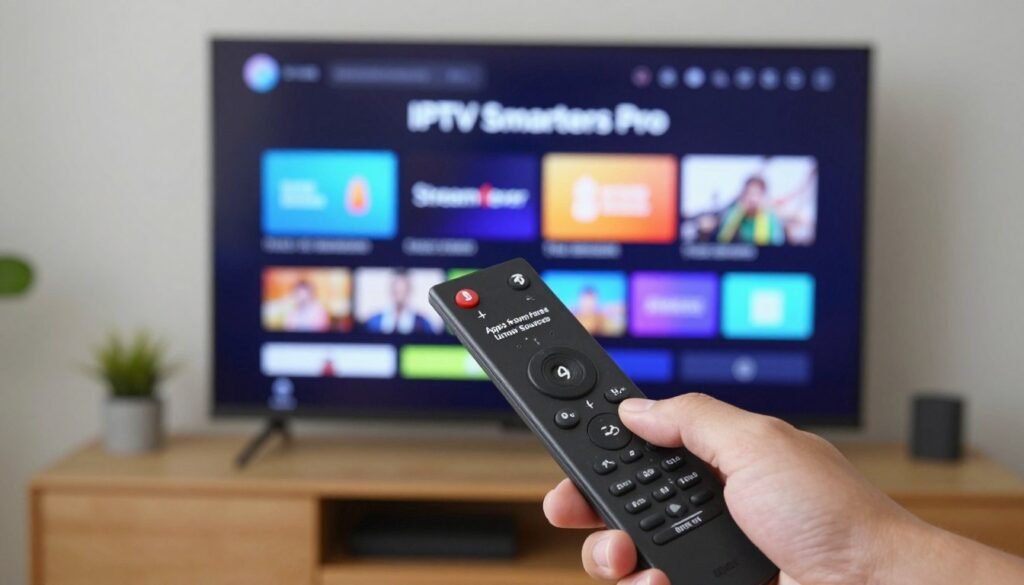
Install IPTV Smarters Pro on Firestick with this simple step-by-step guide for 2026. Curious how a single app and your provider login can turn your Fire TV into a full TV hub? This guide shows you how to set up the Smarters Pro app and sign in with your subscription credentials so channels appear.
What you’ll do: enable Unknown Sources, add a downloader app, grab the Smarters Pro APK, install the app, open it, and log in with either an Xtream Codes API or an M3U URL.
You won’t see channels until you add a valid provider login. This walkthrough is aimed at U.S. Fire TV Stick users in 2026 who want a clear, reliable path with simple steps and safe sources.
Success hinges on two things: following the correct steps and using the right credentials from your service. You’ll also get troubleshooting tips for download errors, buffering, and app freezes, plus comparisons of alternative setup methods.
Safety note: use reputable APK sources, avoid modded files, and keep Fire OS updated for best results.
Key Takeaways
- Follow step-by-step actions: enable permissions, download the APK, install, and log in.
- You need a valid subscription (Xtream Codes API or M3U) to see channels.
- This guide is tailored for U.S. Fire TV Stick models in 2026.
- Two keys to success: correct setup steps and correct provider credentials.
- Expect troubleshooting tips for download issues and playback buffering.
- Stick to reputable APK sources and keep your device updated for safety.
Table of Contents
What IPTV Smarters Pro Is and What You Need Before You Start
Think of Smarters Pro as the software that organizes streams; it does not supply channel content itself.
What the app actually is: Smarters Pro is a media player and launcher. It helps you browse Live TV, VOD, and series provided by a separate service. The app does not include channels or any subscription content.
What a subscription provides in 2026: Most providers deliver live TV categories, movie libraries (VOD), series collections, and sometimes an EPG (program guide). EPG availability varies by provider, and quality depends on that provider’s server capacity.
Common login types you’ll receive
- Xtream Codes API — server URL + username + password.
- M3U playlist URL — a single link that lists channels and streams.
- Sometimes a separate EPG (guide) URL or portal address from your provider.
Before you start — quick checklist
- Your Fire TV device and a stable internet connection.
- Your service credentials (double-check for typos).
- Enough free storage for the app and cache.
Why this matters: If the app opens but no channels appear, the problem is usually the subscription login or provider-side. Performance and reliability depend on both your network and the provider’s servers.
Tip: Verify the channels you actually watch and whether EPG data is included. Keep your credentials private and type them carefully to avoid common login errors.
Firestick Compatibility and Important Notes for US Users
Not every Fire TV will run every streaming player the same way. Device choice matters for smooth playback, menu speed, and multitasking. Newer 4K models and the Fire TV Cube generally deliver better performance for HD and 4K streams.
Which models work best: the Cube often feels faster during heavy navigation because it has a stronger processor and more RAM. Newer 4K sticks handle high-bit-rate streams and keep menus responsive, which matters when you switch channels or browse VOD.
Why app availability varies
App availability differs across app stores due to region rules, store policy, and device type. Some apps show up in the Amazon store for certain devices but not others. That’s why you may need an alternative player that accepts Xtream Codes or M3U links.
- Sideloading means installing an app from outside the app store. It’s common on Fire TV devices when an app is not listed.
- If the app is unavailable, you can use other compatible players without changing your subscription credentials.
- Android devices often get different app versions via Google Play, so setup steps can vary by platform.
| Device | Performance | Best for | Notes |
|---|---|---|---|
| Fire TV Cube | High | Multitasking, 4K streaming | Stronger CPU, more RAM |
| Fire TV Stick 4K | Medium-High | HD/4K playback, living room | Good balance of price and speed |
| Older Fire TV Stick | Medium | Basic streaming | May struggle with high-bitrate streams |
| Android devices | Varies | Alternative app stores, sideloading | Google Play often differs from Amazon store |
Next step: Because availability can vary, you will prepare your device to install apps safely using the recommended method in the next section.
Prepare Your Firestick for Sideloading Apps Safely
Start at the top row of your Fire TV home screen and open Settings so you can change permissions.
Open Developer Options from Settings
From the home menu, go to Settings > Device > Developer Options.
This path gives you access to the toggles needed to allow external app packages.
Enable Apps from Unknown Sources
Find Apps from Unknown Sources and set it to ON. This allows APK files downloaded with tools like Downloader to be installed.
Safety tips and common checks
- Avoid modded APKs: skip unknown sites and altered packages; they can cause security and stability problems.
- Keep Fire OS updated: firmware updates reduce bugs and provide better support for new apps.
- If you get an installation issue, the first thing to re-check is whether Unknown Sources is still enabled.
Install the Downloader App from the Amazon App Store
Get Downloader from the Amazon app store so you can fetch the APK quickly and safely.
Why use Downloader: it is the easiest tool to download the app package directly to your Fire TV. The interface is simple and made for entering URLs, which is the next step in this guide.
Two fast ways to find it:
- Use the magnifier search icon on your home screen and type “Downloader.”
- Hold the remote microphone button and say “Downloader.” Alexa will open the store result.
Once you see the orange Downloader icon, select it, choose Get or Download, and wait for the brief setup to finish. When the button changes to Open, launch the app.
You’ll find Downloader later in your apps list or pinned to the home row if you add it. This step usually takes only a few minutes on a typical US broadband connection.
Quick note: some users open a similarly named app by mistake. Confirm the developer is AFTVnews if that label appears. In the next section you’ll use Downloader to enter the APK URL and complete the core workflow.
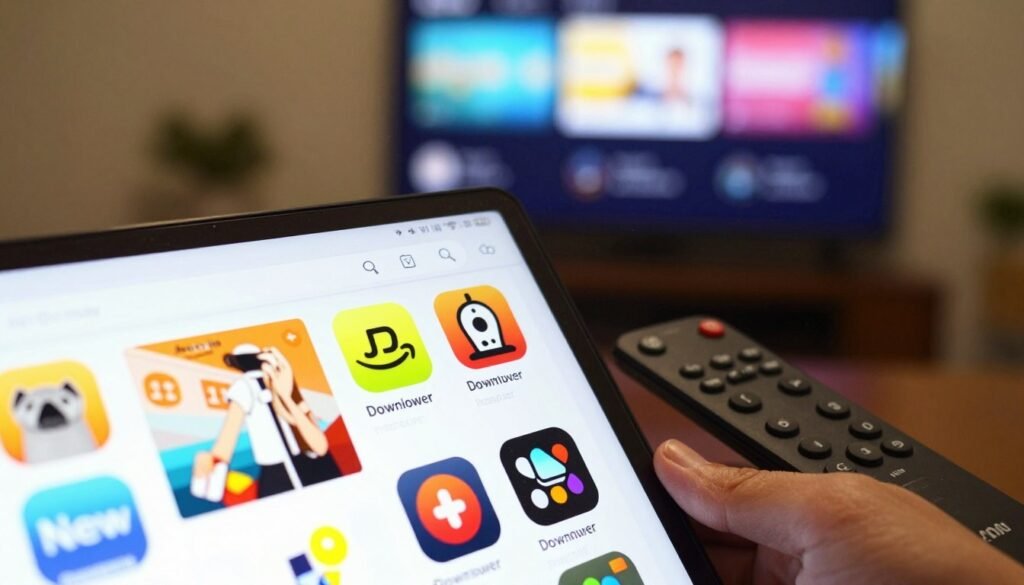
install iptv smarters pro on firestick Using Downloader (Recommended Method)
Launch the Downloader app, grant its prompt to access files, and prepare to enter the URL below.
Step-by-step:
- Open Downloader and accept any initial permission requests so it can save files.
- In the URL field type exactly: https://go.wowlink.ca/IPTV-Smarters and select Go.
- Downloader will fetch the APK. When the Fire OS installation screen appears, choose Install, wait for completion, then select Open.
On first launch, allow the basic permissions the app requests so it can load playlists and play video normally. Granting storage and network access helps the player load your provider links.
Optional cleanup: return to Downloader, locate the downloaded APK and delete it to free space on your stick. This keeps storage tidy and reduces clutter.
If you don’t see the installation screen: re-check that Apps from Unknown Sources is enabled and confirm you have enough free storage. Remember, this process only sets up the player; you still must add your subscription credentials to see channels in smarters pro.
Other Installation Options Compared (Choose What Fits Your Setup)
If the app you want isn’t in your device store, a different method will usually get you watching faster.
Why consider other options? App availability varies by device and region, and some players work better with certain playlists. You may prefer a simpler UI, faster updates, or a method that fits your comfort level with sideloading.
Quick comparison of common methods
| Method | Difficulty | Speed to watch | Update convenience | Works on US Fire devices? |
|---|---|---|---|---|
| Downloader sideload | Medium | Fast | Manual updates | High |
| App store install | Easy | Very fast | Automatic updates | Depends on store |
| Alternative player (Xtream/M3U) | Easy–Medium | Fast | Varies by player | High |
Which option should you pick?
Choose Downloader if the app isn’t listed in your store and you want the official package quickly. Choose the app store when it’s available for simple updates and the least fuss.
Pick another player if you need a different interface, better compatibility, or if you use a web or Kodi setup. Note: there is no Kodi add‑on for this app; use an M3U‑compatible add‑on instead.
Tip: test your credentials on a phone before moving to your TV device to confirm logins. That gives fast answers and saves time while you tune your setup.
First-Time Setup Inside IPTV Smarters Pro
The first-run experience is a short, guided flow that gets you ready to add your provider details.
Accept terms and choose your device type/profile
The first screen asks you to accept terms and privacy prompts. Tap Agree to continue.
Next you pick a device profile. Choose the Fire TV/TV box profile so navigation and remote controls behave as expected.
How the app organizes Live TV, Movies (VOD), and Series
After you add credentials, iptv smarters pro will sync and show three main areas: Live TV, Movies (VOD), and Series. Each area is separated so you can jump straight to what you want.
An EPG is an electronic program guide; some providers supply it and others do not, so guide data may or may not appear.
Quick tips:
- Use Favorites to pin channels or shows you watch most.
- Recent lists surface what you watched last for fast access.
- Allow a little time after login—large channel lists and provider servers affect load speed.
Add Your IPTV Credentials in IPTV Smarters Pro
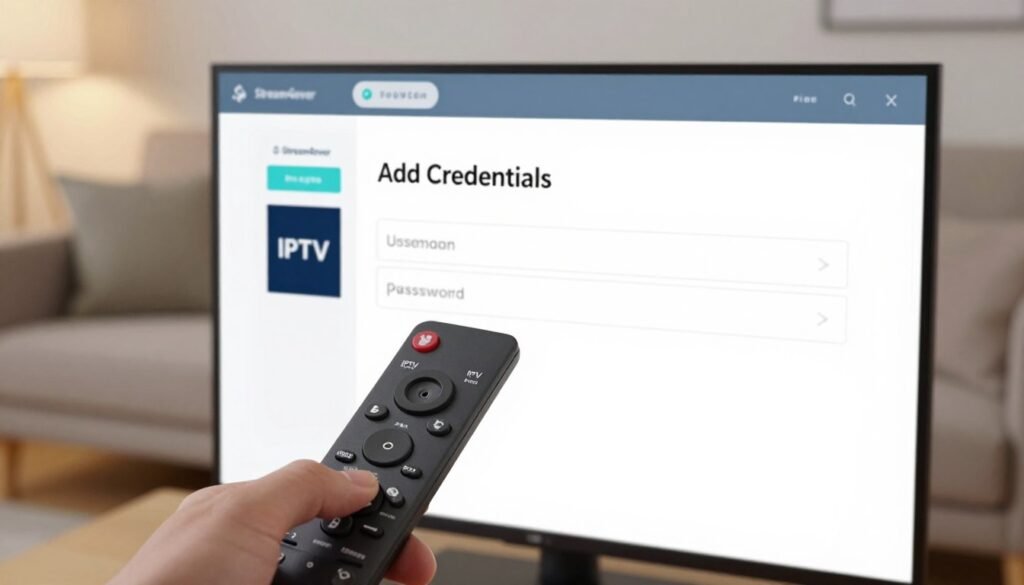
To access live channels and VOD, you must add the login details your service gave you.
Login with Xtream Codes API:
- Open the app and choose Add User.
- Select Login with Xtream Codes API.
- Enter the server URL, username, and password exactly as provided. The server URL is the portal address; the username and name authenticate your account.
Add a playlist with M3U:
- Choose Playlist Login and paste the M3U URL into the field.
- If your provider includes an EPG URL, add it for program guide data.
- Tap Save and wait for the app to sync Live TV, VOD, and Series.
Common credential mistakes to avoid:
- Extra spaces when copying credentials.
- Missing http:// or https:// in the provider URL.
- Wrong URL format, typo in username, or expired account credentials.
If you’re unsure which login type you have, check your welcome email from the provider or ask support. Initial sync can take some time depending on channel count and server response. If login succeeds but no content appears, the issue is usually provider-side or account status—not the app itself.
| Login Type | Required Fields | When to Use |
|---|---|---|
| Xtream Codes API | Server URL, Username, Password | Provider gave separate server and credentials |
| M3U Playlist | M3U URL, optional EPG URL | Provider supplied a single playlist link |
| EPG only | EPG URL | Add if guide data is missing after playlist sync |
Troubleshooting Common Installation and Playback Issues on Firestick
Most playback problems trace back to a simple setting or a provider issue.
When the app won’t install
Diagnose this in order: confirm Apps from Unknown Sources is enabled, accept the install prompt, and verify you have enough free storage.
If the install prompt is blocked, back out, re-open Downloader, and try again after re-checking permission settings.
Downloader and download problems
If you can’t download a file, check your internet and the typed URL. A single typo will stop the transfer.
When Downloader won’t open, force stop the app, relaunch it, and try the URL again. If it still fails, reboot the device and test the link from a phone or PC.
App opens but no channels load
The player is only a client; it does not provide service. If channels are missing, the likely cause is wrong credentials or a provider-side problem.
Test your account on another device and contact provider support if streams are down across multiple devices.
Buffering, freezing, and playback fixes
- Switch to 5 GHz Wi‑Fi and move closer to the router to reduce interference.
- Restart the router and avoid heavy downloads during peak time windows like evenings or big events.
- Try different player decoder modes in settings or increase the buffer size if available.
Quick maintenance checklist
- Force stop the app.
- Clear cache and app data.
- Restart the device; if problems persist, uninstall and reinstall the app.
| Symptom | Likely Cause | Quick Fix |
|---|---|---|
| Won’t install | Unknown Sources disabled / low storage | Enable permission, free space, retry |
| Downloader won’t fetch | Bad URL / network drop | Retype URL, check network, relaunch app |
| No channels after login | Credential or provider issue | Test on phone, contact provider support |
| Buffering or freezes | Wi‑Fi congestion, peak time, server load | Use 5 GHz, reboot router, test at different times |
If the account is active but many channels fail, gather details (device model, exact time, affected channels) and reach out to provider support. That helps customers get faster help and resolves most service-related issues.
Conclusion
A smooth home viewing experience depends on a short checklist: keep your device updated, free leftover files, and use a stable 5 GHz Wi‑Fi link when possible.
Quick summary: prepare the Fire TV, add Downloader, add the app, then enter your subscription credentials to load channels. Remember: iptv smarters pro is a client app, not a content service—channels come from your service and vary by provider.
If streams buffer, reboot your router, try 5 GHz, and test the same credentials on a phone to rule out account issues. If channels still fail, contact your service for updated login or EPG details.
FAQ (short answers for featured snippets):
Do I need a subscription? Yes—without credentials the app shows no channels.
Is sideloading safe? It can be if you enable Unknown Sources deliberately, avoid modded packages, and keep Fire OS updated.
Why not in the store? Availability varies by store, region, and device; sideloading or alternatives may be needed.
What if channels buffer? Check network, reboot router, use 5 GHz, and try at different times.
How move setup to another device? Use the same Xtream or M3U credentials on another supported device or phone for testing.