
Quick answer: IPTV not working is usually caused by an internet outage, an expired subscription, a typo in your login details, or an app that needs a restart. Work through the checklist below in order.
Key Takeaways
- Always confirm your internet works before touching the app.
- Expired subscriptions are one of the most common causes of a blank channel list.
- A full app reinstall fixes most issues nothing else solves.
- Testing on a second device tells you if the problem is your network or the service itself.
Table of Contents
IPTV Not Working? Here’s Where to Start
When you notice IPTV not working out of nowhere, it’s almost always one of a handful of causes. Work through this checklist in order — most issues are fixed within the first three steps.
1. Check Your Internet Connection First
Before touching your IPTV app, confirm your internet is actually working. Open a browser or another app that needs the internet, or run a quick speed test. If your connection itself is down, restart your router and wait a few minutes before trying IPTV again.
2. Restart the App and the Device
Fully close your IPTV app (not just minimize it), then restart your device — Firestick, Android box, Smart TV, or phone. This clears temporary memory issues that cause an app to freeze or fail to load channels.
3. Verify Your Subscription Is Active
Login errors or a blank channel list often mean the subscription needs to be re-activated or has expired. Check your activation email or contact your provider’s support to confirm your account status before assuming it’s a technical issue.
4. Re-Enter Your Login Details or M3U URL
A single typo in your username, password, or M3U playlist URL will stop everything from loading. Delete the saved playlist/account in your app and re-enter the details carefully, ideally by copy-pasting rather than typing.
5. Check for an App or Firmware Update
Both your IPTV app and your device’s operating system (Fire OS, Android TV, tvOS) get periodic updates. An outdated app can lose compatibility with your provider’s servers. Check your app store for pending updates.
6. Test on a Different Device or Network
If possible, try loading the same account on your phone using mobile data. If it works there, the problem is with your original device or home network, not your IPTV service. If it fails everywhere, the issue is likely server-side.
7. Clear Cache and Reinstall the App
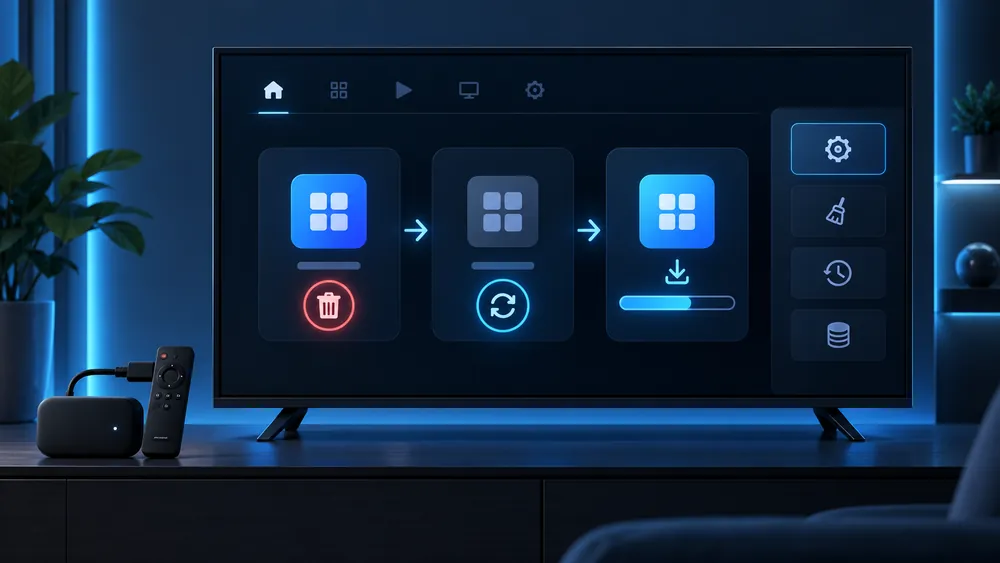
If nothing else works, uninstall the IPTV app completely and reinstall it fresh. This removes any corrupted settings or cache files that a simple restart doesn’t clear.
Still Not Working?
If you’ve gone through every step and IPTV not working still describes your situation, contact your provider’s support directly — there may be a server-side outage affecting your account. Also check our guides on fixing IPTV buffering and fixing a black screen if those match what you’re seeing.
Looking for a service with responsive 24/7 support when something goes wrong? See our IPTV subscription plans.
FAQ: IPTV Not Working
Why did my IPTV app suddenly stop loading channels?
The most common causes of IPTV not working are an expired subscription, an internet outage, or a login detail that changed. Check your subscription status first.
Should I reinstall the app or just restart it?
Always try restarting first — it’s faster and fixes most cases. Reinstall only if restarting and clearing cache don’t work.
How do I know if the problem is my device or my provider?
Test the same account on a different device or network. If it fails everywhere, the issue is server-side.
Can an outdated app cause this?
Yes. Providers periodically update server compatibility, and an old app version can lose sync with those changes.
For more troubleshooting help, check our full IPTV troubleshooting guide.