
Quick answer: M3U playlist not working is usually caused by a typo in the URL, an expired subscription, or the wrong login format for your app. Double-check the URL first — it’s the most common cause.
Key Takeaways
- Always copy-paste the M3U URL — never type it manually.
- An expired subscription breaks a previously working URL.
- Some apps need Xtream Codes login details instead of a raw M3U link.
- If nothing loads in any app, the issue is likely server-side.
Table of Contents
M3U Playlist Not Working: What’s Really Going On
An M3U playlist is simply a text file listing all your channel links. When it fails to load, the cause is almost always one of the issues below — rarely a problem with the app itself.
1. Double-Check the URL for Typos
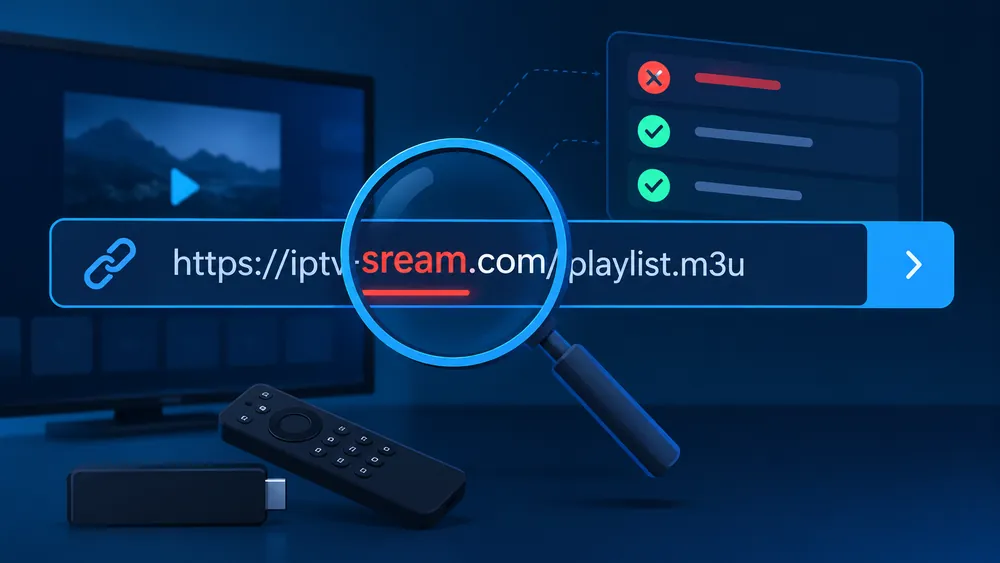
M3U URLs are long and easy to mistype. Copy-paste the URL directly from the email or dashboard your provider gave you instead of typing it manually. Even a single missing character will cause a “playlist not found” error.
2. Confirm the Playlist Hasn’t Expired
Most IPTV subscriptions link the M3U URL to an active subscription period. If your subscription lapsed, the same URL that worked yesterday will stop working today. Check your account status with your provider.
3. Check Your Internet Connection
Your app needs to reach the playlist URL over the internet the moment you add it. A dropped connection during loading is a common cause of M3U playlist not working errors. Confirm you have a stable connection before re-adding the playlist.
4. Verify You’re Using the Correct Format
Some apps ask for the direct M3U URL, while others (like IPTV Smarters Pro) prefer Xtream Codes login details (server URL, username, password) instead of a raw M3U link. Check which format your specific app expects in its “Add Playlist” or “Login” screen.
5. Delete and Re-Add the Playlist
Remove the saved playlist entirely from your app’s settings, restart the app, and add it again from scratch. A corrupted saved entry is a common and easy-to-miss cause of loading failures.
6. Try a Different App
If the playlist loads fine in one app (like VLC) but not another, the issue is with that specific app’s configuration rather than the playlist itself. This helps you isolate where the problem actually is.
7. Contact Your Provider
If the URL is correct, your subscription is active, and the playlist still won’t load anywhere, the file may be temporarily down on the provider’s server. This is a server-side issue only your provider can fix.
Related Guides
Once your playlist loads, if playback is choppy see our IPTV buffering fixes. For a full app troubleshooting checklist, see IPTV not working — complete guide.
FAQ: M3U Playlist Not Working
What is an M3U playlist exactly?
It’s a simple text file (or URL) that lists all your channel streaming links, used by IPTV players like VLC or IPTV Smarters Pro.
Why does my playlist work in one app but not another?
Some apps expect a raw M3U URL while others expect Xtream Codes login details (server, username, password). Check which format your app needs.
Can an expired subscription break a playlist that worked before?
Yes — the same URL stops working the moment your subscription lapses, even if nothing else changed.
Is it safe to share my M3U URL?
No — treat it like a password. Anyone with the URL can access your channels, which can violate your provider’s terms of service.
Looking for a provider with reliable, always-active playlist links? See our IPTV subscription plans.
For more troubleshooting help, check our full IPTV troubleshooting guide.