
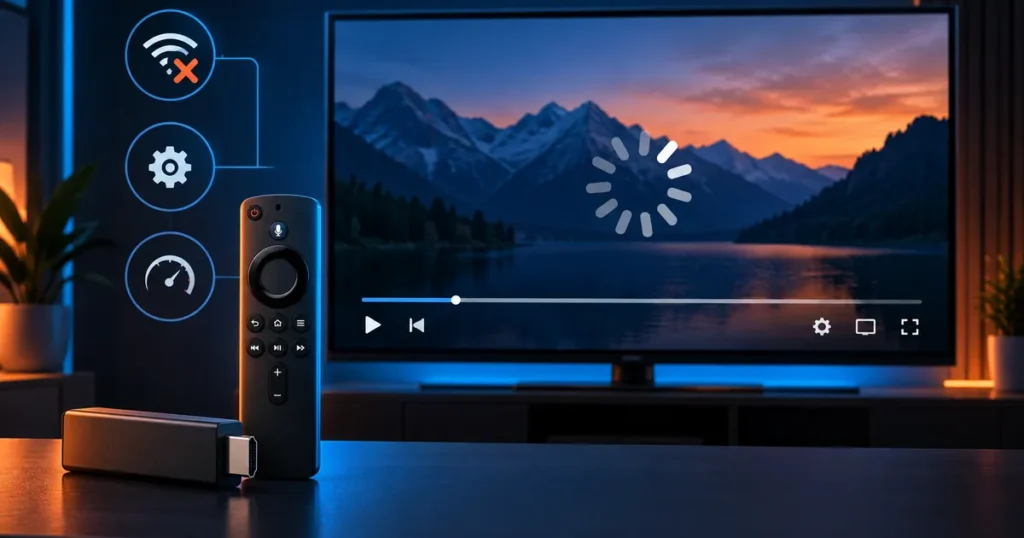
Quick answer: IPTV freezing firestick issues are mainly caused by limited storage and RAM. Clearing cache, closing background apps, and restarting the device solve most cases within minutes.
Key Takeaways
- Firestick has less RAM/storage than Smart TVs or Android boxes, making it more freeze-prone.
- Clearing the app cache every couple of weeks prevents most freezing.
- Weak Wi-Fi signal affects Firestick more since it has no Ethernet port by default.
- A factory reset is the last resort if nothing else works.
Table of Contents
IPTV Freezing Firestick: What’s Really Going On
Firestick devices have limited RAM and storage compared to Smart TVs or Android boxes, which makes them more prone to freezing during long streaming sessions. The good news: most causes are easy to fix.
1. Check Available Storage
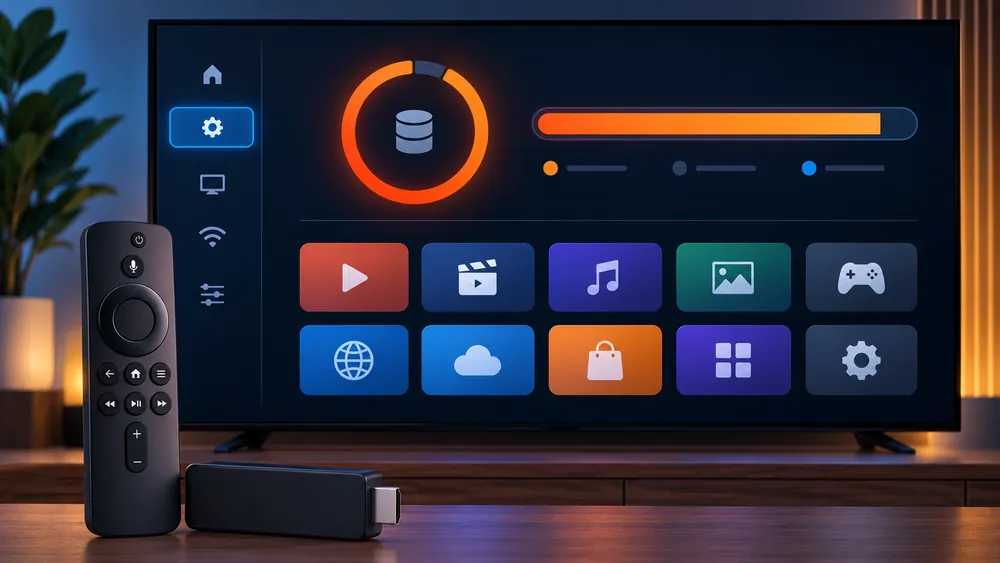
Go to Settings > My Fire TV > About > Network to check storage, or Settings > Applications > Manage Installed Applications. If your Firestick is nearly full, free up space by removing unused apps — low storage is one of the top causes of freezing on Fire TV devices.
2. Clear the IPTV App’s Cache
Go to Settings > Applications > Manage Installed Applications > [your IPTV app] > Clear Cache. Do this every couple of weeks if you stream often — cache buildup is one of the most common causes of IPTV freezing firestick issues.
3. Close Background Apps
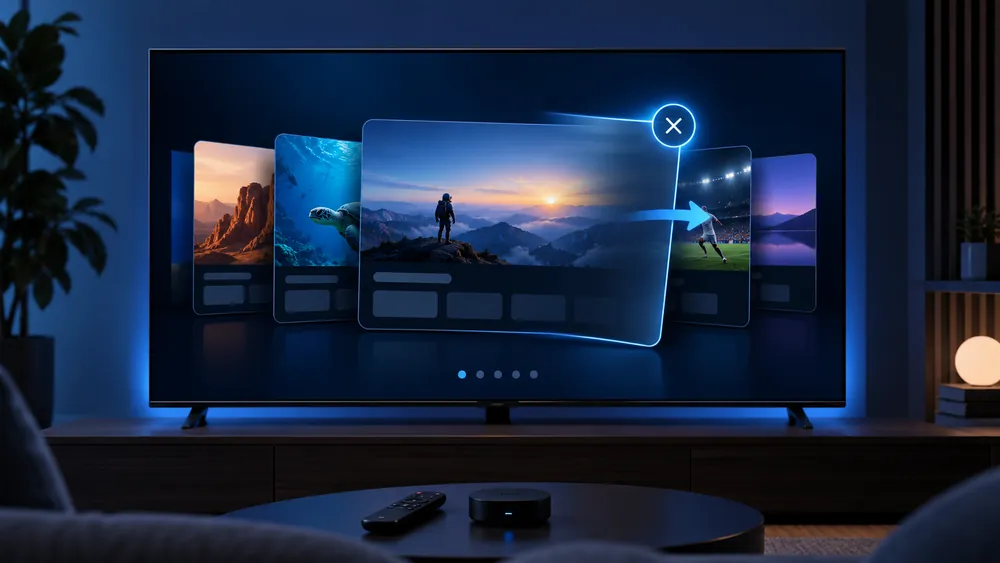
Press and hold the Home button to see recently used apps, then close anything you’re not using. Firestick’s limited RAM means background apps directly compete with your IPTV app for memory.
4. Restart Your Firestick
Go to Settings > My Fire TV > Restart (see Amazon’s official Fire TV support for device-specific steps), or unplug the power cable for 30 seconds. A restart clears the device’s memory completely, which fixes most freezing issues.
5. Use a Wired Connection or Wi-Fi Extender
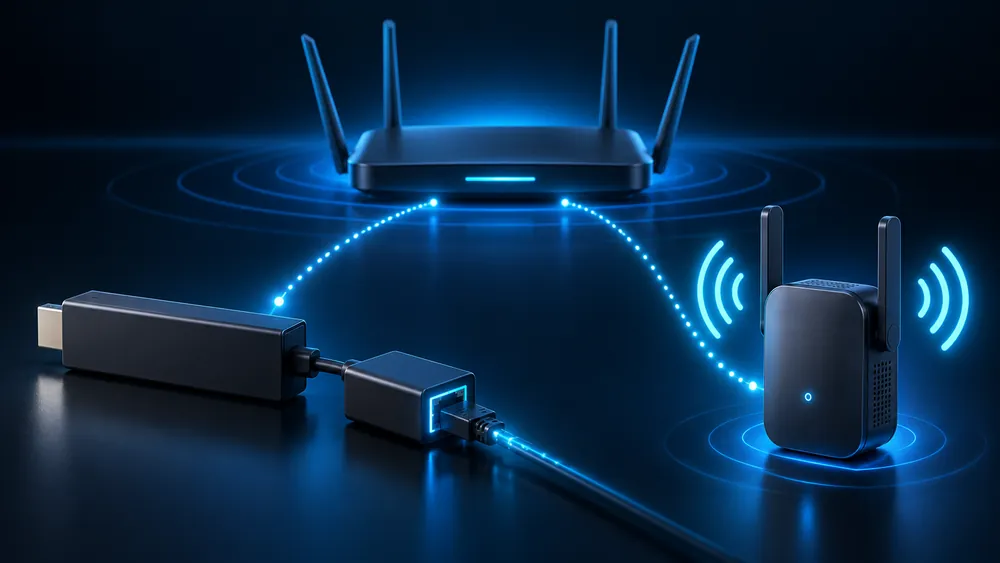
Firestick relies entirely on Wi-Fi (no Ethernet port on standard models), making it more sensitive to weak signal than other devices. If your router is far from your TV, a Wi-Fi extender or a Firestick-compatible Ethernet adapter can significantly reduce freezing.
6. Lower Stream Quality
Older Firestick models (1st and 2nd generation) can struggle to decode 4K streams smoothly. Switch to HD in your app’s settings if freezing happens mainly on higher-quality streams.
7. Update Fire OS and Your IPTV App
Go to Settings > My Fire TV > About > Check for Updates, and check your app store for IPTV app updates. Outdated software is a common, easily overlooked cause of freezing.
8. Factory Reset as a Last Resort
If freezing continues after all the above, a factory reset (Settings > My Fire TV > Reset to Factory Defaults) clears any deeper software issues, though you’ll need to reinstall your apps afterward.
Related Guides
New to installing IPTV on Firestick? See our IPTV Smarters Firestick setup guide. For buffering specifically (rather than full freezing), see 9 fixes for IPTV buffering.
FAQ: IPTV Freezing Firestick
How often should I clear my Firestick’s cache?
Every 1-2 weeks if you stream daily. It’s the single most effective habit to prevent IPTV freezing firestick issues.
Does freezing mean my Firestick is too old?
Not necessarily — 1st and 2nd generation Firesticks freeze more often on 4K content, but clearing cache and closing background apps helps at any generation.
Is Wi-Fi the main cause of Firestick freezing?
It’s one of the top causes, since Firestick has no built-in Ethernet port. A Wi-Fi extender or Ethernet adapter often solves it.
Should I factory reset my Firestick to fix freezing?
Only as a last resort, after trying cache clearing, restarts, and storage checks first.
Want a service optimized for smooth Firestick streaming? See our IPTV subscription plans.
For more troubleshooting help, check our full IPTV troubleshooting guide.