
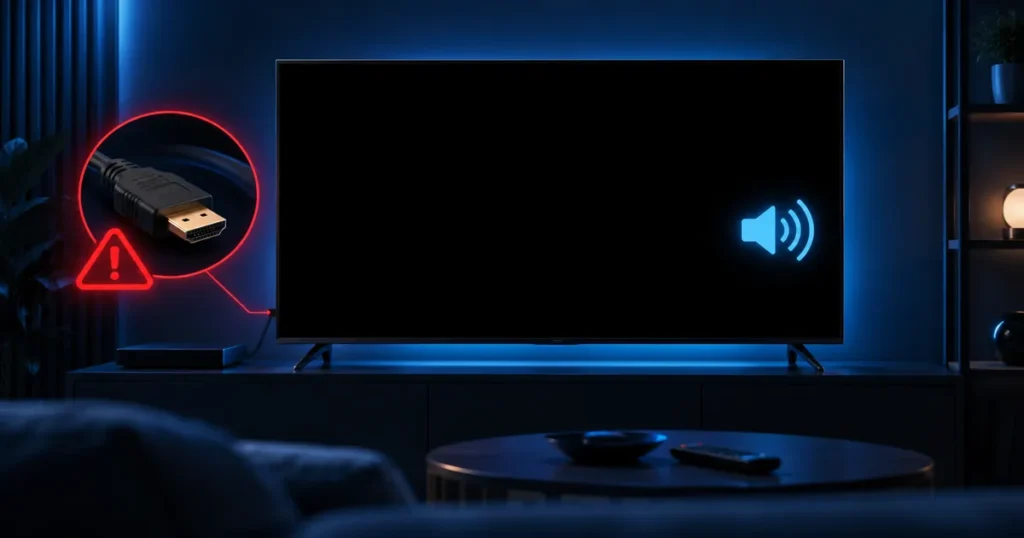
Quick answer: An IPTV black screen with sound but no picture is almost always an HDMI connection or video decoder issue, not a subscription problem. Try switching video players in your app first — it’s the fastest fix.
Key Takeaways
- Switching video player/decoder in the app settings fixes most black screens instantly.
- A loose HDMI cable is one of the most common causes.
- Older TVs can struggle to decode certain 4K streams.
- If only one channel shows a black screen, the issue is that stream, not your device.
Table of Contents
What Causes an IPTV Black Screen?
An IPTV black screen — often with audio still playing — is usually a video decoding or HDMI issue rather than a problem with your subscription. Here’s how to diagnose and fix it.
1. Check the HDMI Connection
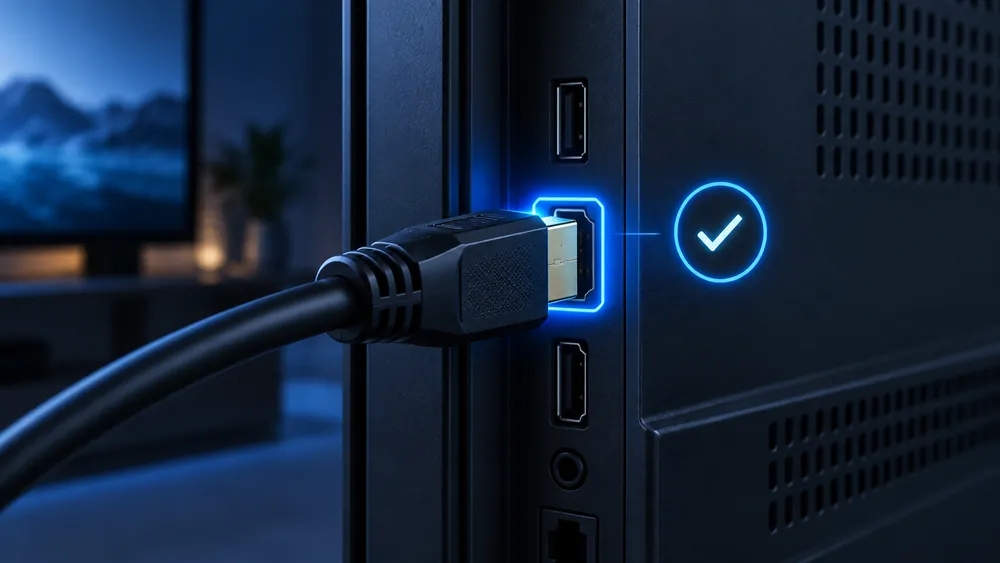
Unplug and firmly reconnect the HDMI cable at both ends (device and TV). Try a different HDMI port on your TV if possible. A loose or damaged cable is one of the most common causes of a black screen with sound.
2. Switch Video Player / Decoder in the App
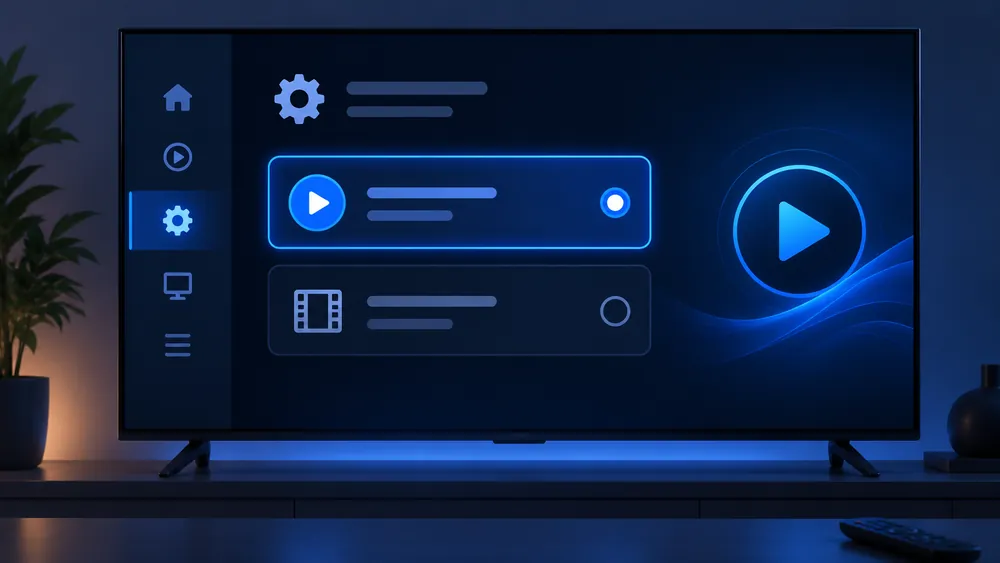
Most IPTV apps (like IPTV Smarters Pro) let you choose between video players — usually “Default/Exo Player” and “VLC Player” — in Settings. If one causes a black screen, switching to the other often fixes it immediately, since it changes how the video is decoded.
3. Lower the Video Resolution
Some older TVs or streaming boxes can’t properly decode certain 4K or high-bitrate streams, resulting in a black screen. Try switching the channel or stream quality to HD or SD in your app’s settings.
4. Update Your Device’s Firmware
On Smart TVs especially, outdated firmware can cause compatibility issues with certain video codecs. Check your TV’s settings menu for a system update.
5. Restart the App and the Device
Force-close the IPTV app, then restart your Firestick, Android box, or Smart TV completely. This resolves temporary rendering glitches that a simple app restart alone won’t fix.
6. Try a Different Channel or Stream
If only one specific channel shows a black screen while others play fine, the issue is with that individual stream, not your device. Try again later or report the channel to your provider.
7. Reinstall the IPTV App
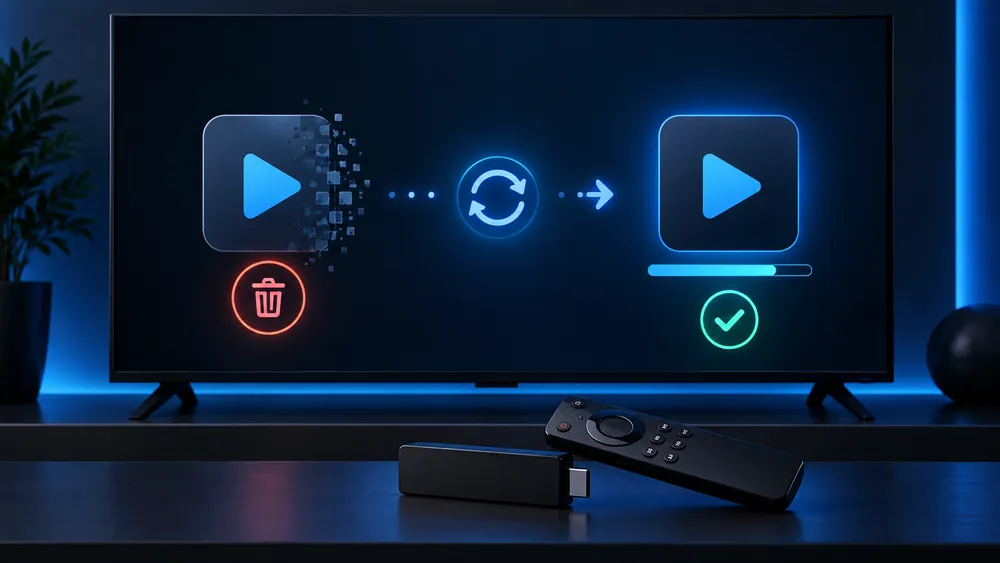
If the black screen persists across every channel and other fixes haven’t worked, uninstall and reinstall the app to reset any corrupted display or codec settings.
Related Guides
If your issue looks more like slow loading or stuttering rather than an IPTV black screen, see our guide on fixing IPTV buffering. For a completely unresponsive app, see IPTV not working — full troubleshooting guide.
FAQ: IPTV Black Screen
Why do I hear sound but see no picture?
This IPTV black screen is usually a classic sign of a video decoder mismatch between the stream and your device. Switching the video player in your app’s settings usually fixes it.
Is a black screen a sign my subscription expired?
Usually not — an expired subscription typically shows a login error, not a black screen with working audio.
Does this happen more on older TVs?
Yes, older Smart TVs can struggle to decode newer 4K codecs, which can result in a black screen even though audio plays fine.
Can HDMI cables really cause this?
Yes — a loose, damaged, or low-quality HDMI cable is one of the most common and overlooked causes.
Want a service with optimized servers built for stable HD and 4K playback? See our IPTV subscription plans.
For more troubleshooting help, check our full IPTV troubleshooting guide.